Gadael i lofnodwyr ailenwi neu anfon dogfen ymlaen
Mae Legalesign yn darparu dau ffordd i ganiatáu i lofnodwr ail-neilltuo, anfon ymlaen, neu neilltuo dogfen i berson arall — o'r dudalen llofnodi ei hun, neu drwy ddolen yn e-bost y llofnodwr. Mae hyn yn ddefnyddiol pan fo angen i'r derbynnydd gwreiddiol newid pwy sy'n llofnodi, ail-danfon y ddogfen i gydweithiwr, neu drosglwyddo cyfrifoldeb llofnodi i rywun arall.
Ailenwi o'r dudalen llofnodi
Gellir rhoi opsiwn i'r derbynwyr ail-neilltuo eu dogfen i dderbynnydd newydd yn uniongyrchol o'r dudalen llofnodi.
Mae hyn yn ddefnyddiol os gall sawl derbynnydd gyflawni'r un rôl ar gyfer dogfen.
Gall defnyddwyr gweinyddol alluogi neu analluogi'r nodwedd hon: ewch i Presets > Experiences, cliciwch y Profiad yr hoffech ei olygu, cliciwch Edit Experience, a mynd i Signing Experience > Options. Mae'r opsiwn hwn wedi ei analluogi diofyn.
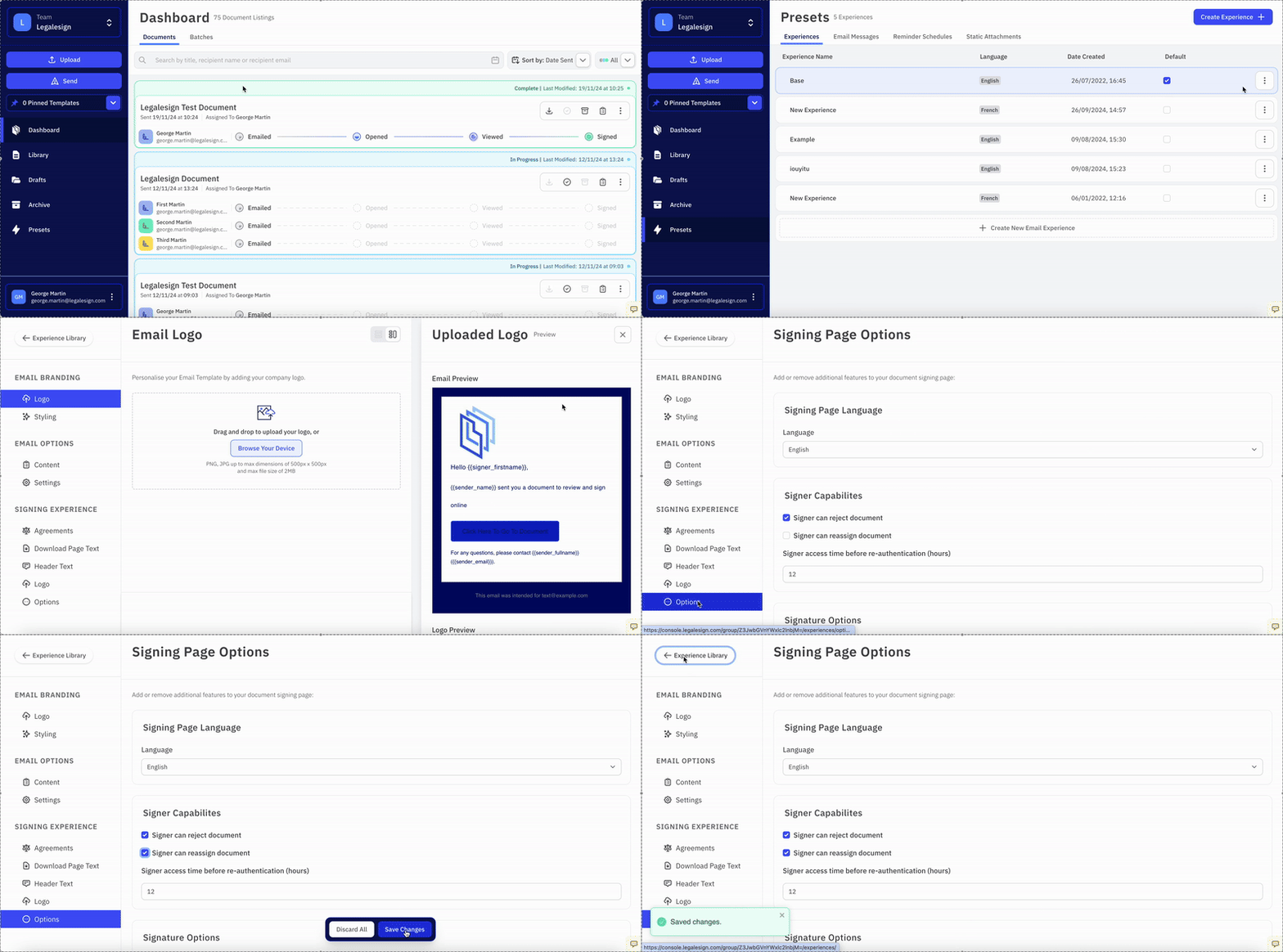
Ticiwch Gall y llofnodwr ail-neilltuo'r ddogfen a chliciwch Save i gadarnhau.
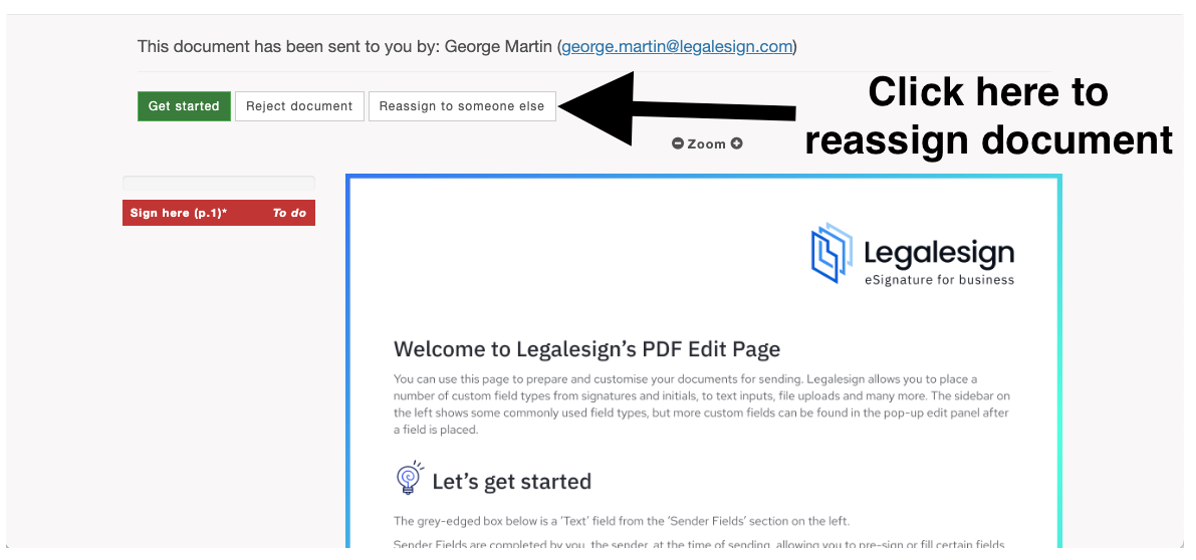
Bydd botwm yn ailgyfeirio'r llofnodwr i dudalen newydd lle gall gyflwyno manylion y derbynnydd newydd ac anfon y ddogfen ymlaen.
Nid yw'r opsiwn ail-neilltuo ar y dudalen llofnodi ar gael ar y fersiwn ddiweddaraf o'r dudalen llofnodi ar hyn o bryd. Cysylltwch â chefnogaeth os ydych angen y nodwedd hon i newid eich fersiwn o'r dudalen llofnodi. Bydd y nodwedd yn dod yn fuan i'r tudalennau llofnodi diweddaraf.
Newid dolen y llofnodwr yn yr e-bost
Gallwch hefyd gynnwys dolen yn e-bost y llofnodwr sy'n caniatáu iddynt newid neu anfon y ddogfen ymlaen i berson arall cyn iddynt agor y dudalen llofnodi.
I alluogi hyn, ewch i Presets > Experiences, cliciwch y Profiad yr hoffech ei olygu, cliciwch Edit Experience, a mynd i Signing Experience > Settings. Ticiwch Mae e-byst y llofnodwr yn cynnwys dolen i newid y llofnodwr neu ei anfon ymlaen i rywun arall a chliciwch Save.
Pan fydd hyn yn galluogi, bydd e-bost hysbysu'r llofnodwr yn cynnwys dolen y gallant ei defnyddio i ail-neilltuo'r ddogfen i dderbynnydd gwahanol heb fod angen agor y dudalen llofnodi yn gyntaf.