Using the Legalesign GraphiQL Explorer
The Legalesign GraphQL Explorer lets you test queries and mutations against the live API, browse the complete schema, and debug before writing code.
Open the Explorer
Go to https://graphiql.legalesign.com/ and log in with your credentials.
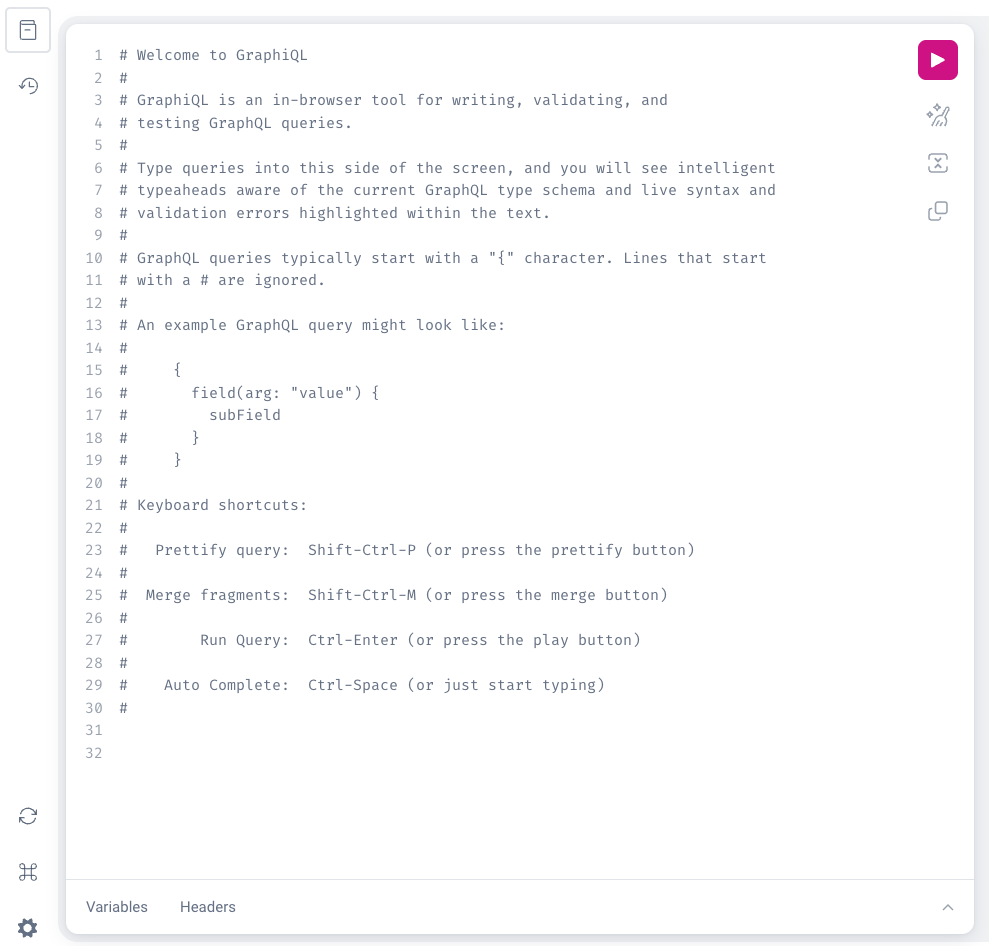
If you don't yet have a Legalesign account, sign up for a free trial.
Create a Query
Paste the following into the main query window:
query MyFirstQuery {
  user {
    id
    name
  }
}
By default, if you call the user object the information returned is your own. Execute the query by clicking the play button in the top toolbar.
Understanding Results
{
  "data": {
    "user": {
      "id": "dXNyZTE2NBB1NWQtNWVjXS00NzIzL3G3NDI5ODEtZmFhOGFjYzdlMGRh",
      "name": "Bob Mortimer",
      "firstName": "Bob",
      "lastName": "Mortimer"
    }
  }
}
The response contains a data property with a user object — because we asked for a single User object.
User is a special case — if you don't provide an id, it assumes you want your own user info. With other object types you will always need to pass the specific id:
query GetAGroup {
  group(id: 'zSJy2jhsdDF') {
    id
    name
  }
}
How to Find Out More
By Searching
In the top right corner, click < Docs to open the documentation pane. In the Search Schema box, type User. Click the top result to see all fields available on the User type, with descriptions for each.
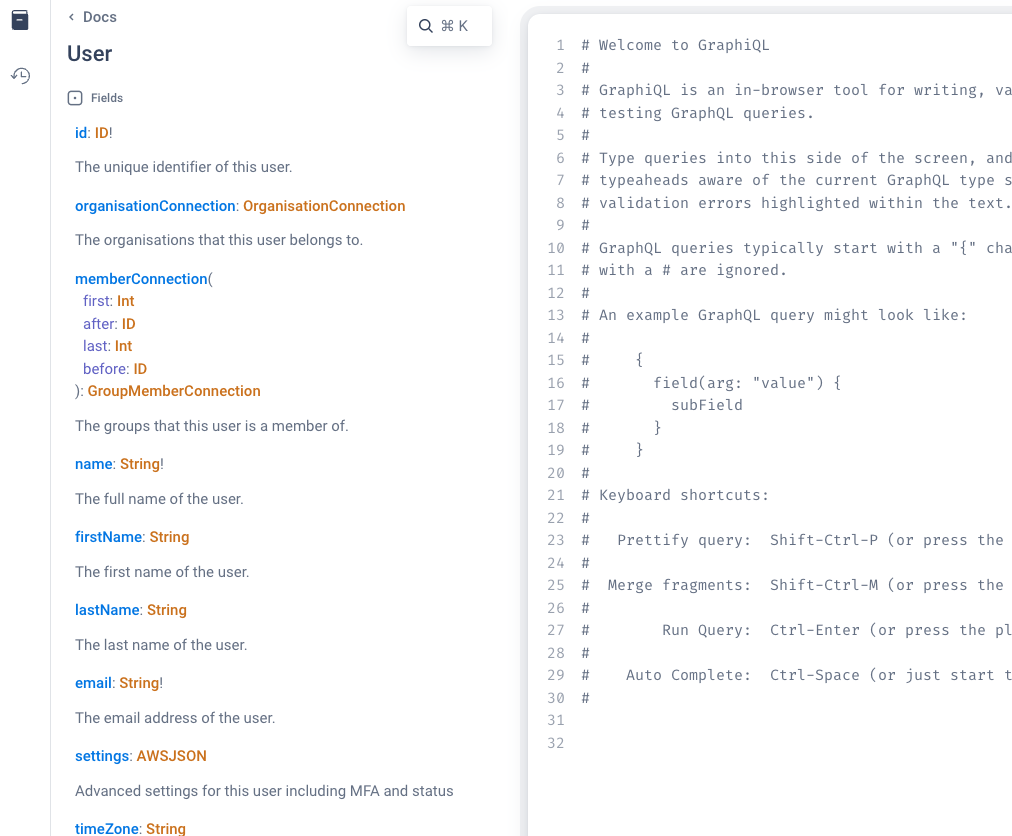
By Browsing
If you don't know the type you want, browse the schema instead. In the Documentation Explorer, click < Back until you're at the root. You'll see three root types: Query, Mutation and Subscription.
Click Query to see available types:
organisation(id: ID, orgId: ID): Organisation
Returns an Organisation.

group(id: ID, groupId: ID): Group
Returns a Group.

user(id: ID, userId: ID): User
Returns a User (or the current user if id is null).
Notice the description for User tells us we can get the current user by omitting id. Click any type to explore its fields.
Alter the Query
Try adding more fields:
query MyFirstQuery {
  myInfo: user {
    id
    name
    canAdministerUsers
  }
}
Hit play. The results now include the new field:
{
  "data": {
    "myInfo": {
      "id": "...",
      "name": "...",
      "canAdministerUsers": true
    }
  }
}
This shows the test user has administrator access — if you're using a free trial account, you probably do too.