Developer Portal
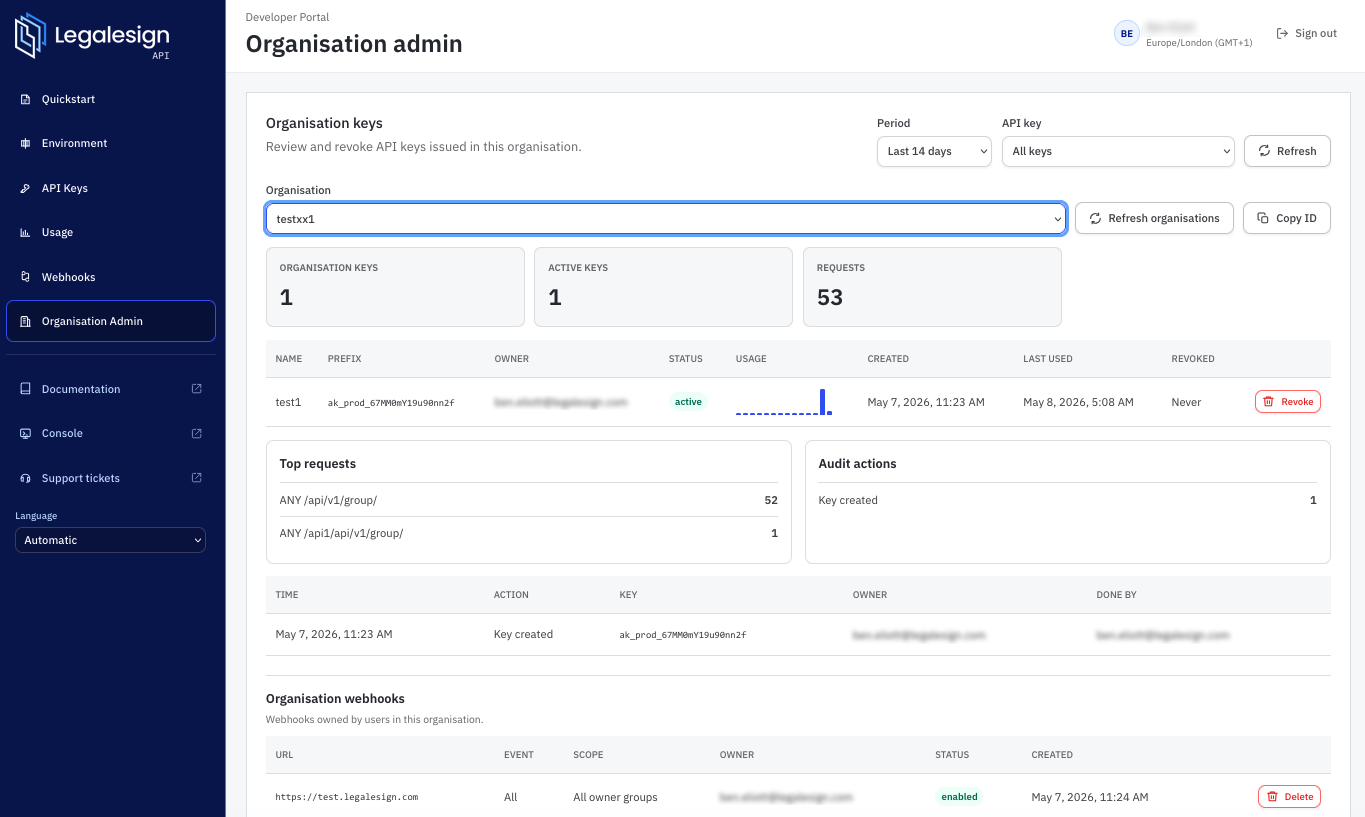
The Legalesign Developer Portal is where you can manage your API access and supervise your organisation.
Use it to create and revoke API keys, copy the identifiers needed by your integration, manage webhook endpoints, review recent webhook deliveries, and inspect API usage for your organisation.
The portal replaces the older API dashboard for new API-key management workflows. Existing legacy REST API keys continue to work for existing integrations, but new integrations should use the portal and the new API-key format.
Access
Go to developer.legalesign.com. Sign in with your Legalesign account. You may login automatically if you have an active session on the web app.
Your account must be approved for API development. If the portal says API-key management is not enabled for your user, create a support ticket and ask for API access to be verified.
API Keys
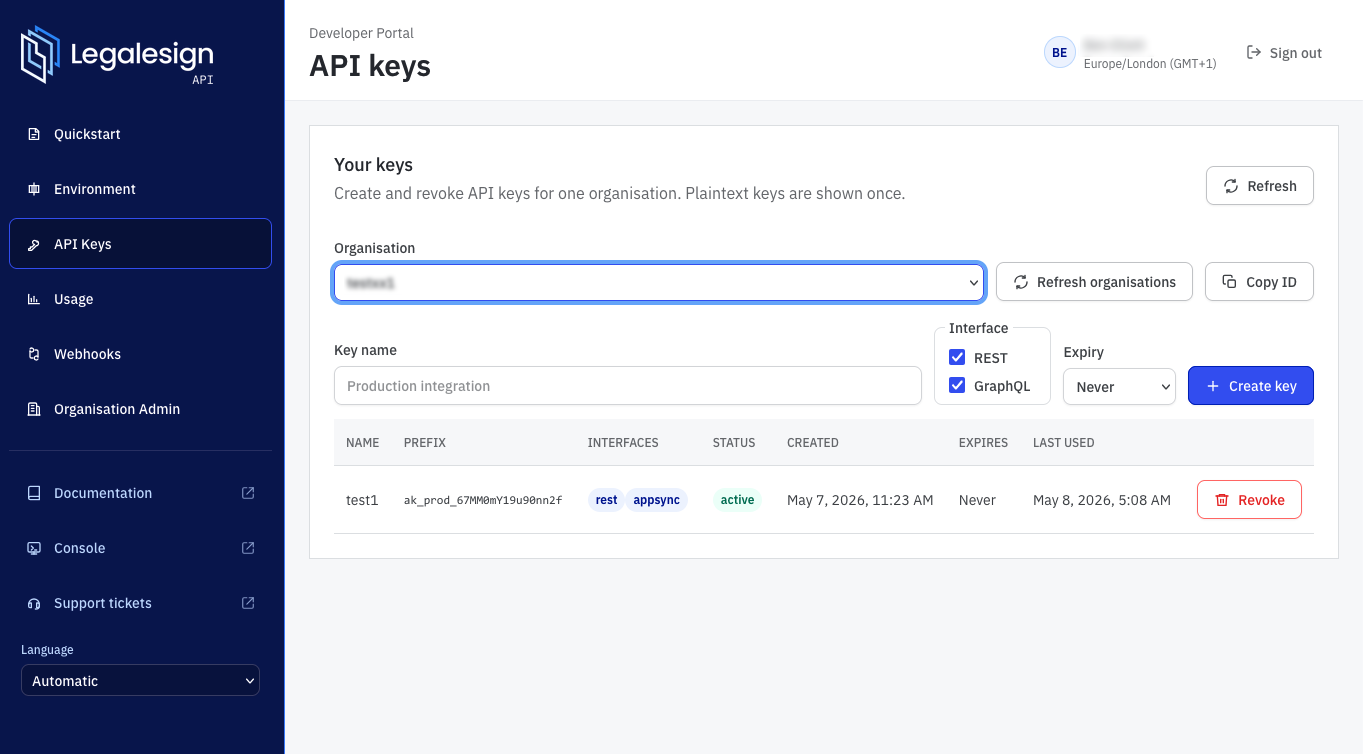
The API Keys section lets you create and revoke API keys for an organisation.
When you create a key, choose:
- A key name, usually the integration or environment that will use it.
- The API interface: REST, GraphQL, or both.
- An optional expiry period.
The plaintext API key is shown once, immediately after creation. Copy it before leaving the page because it cannot be shown again.
New keys use the enterprise API-key format and are sent as a bearer token:
Authorization: Bearer ak_<environment>_<key-id>.<secret>
Legacy REST keys are shown separately when they exist. They are supported for existing REST integrations only. Move new integrations to the new API keys and revoke legacy keys when they are no longer used.
Environment
The Environment section shows the organisation and team identifiers available to your account.
Use this section when an API request needs an organisation or team context. In particular, REST API requests that act inside an organisation should include the organisation header:
X-Organisation: <organisation-id>
The portal shows the GraphQL and REST identifiers side by side where both are available.
If your REST API user is in sandbox mode, the Environment section shows your current throttle limit (100 calls per hour).
Webhooks
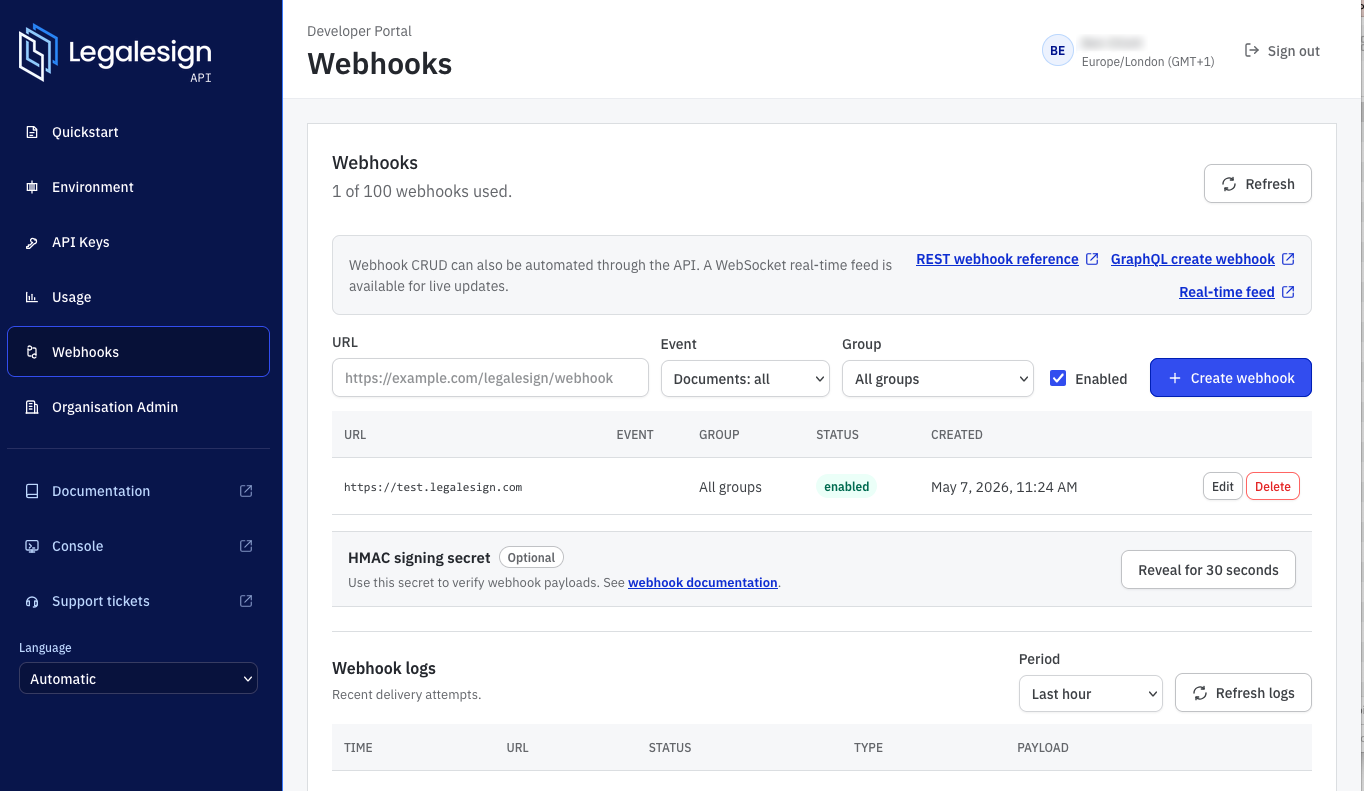
The Webhooks section lets you create, edit, disable, and delete webhook endpoints.
For each webhook, choose:
- The endpoint URL.
- The event type.
- The group scope, or all groups.
- Whether the webhook is enabled.
The portal also shows recent webhook delivery attempts. Use the log view to inspect event payloads, delivery status, and recent failures.
To facilitate webhook development, you can manually push webhook events on this page too.
For automated setup, webhook configuration can also be managed through the API. See the webhooks guide for integration details.
Usage
The Usage section summarises recent API activity for the selected organisation.
Use it to check:
- Total request volume.
- Which keys were used.
- Top operations.
- Authorized and denied request counts.
- Request activity over time.
This is the first place to check after creating a key and making a test request. It helps confirm that the key is being used and whether requests are being accepted or denied.
Organisation Admin
Organisation admins can see a broader management view for their organisation.
Depending on your permissions, this section can include:
- Organisation-level API keys.
- Active and revoked keys.
- Usage across organisation keys.
- API-key audit events.
- Organisation webhooks.
Use this view to review access, revoke keys owned by organisation users, and audit recent API-key lifecycle changes.