Signing date field
A signing date field stamps the document automatically — no input required from the sender or signer.
- Sender Signing Date — stamps the date when the document is sent
- Signer Signing Date — stamps the date when the signer completes the document
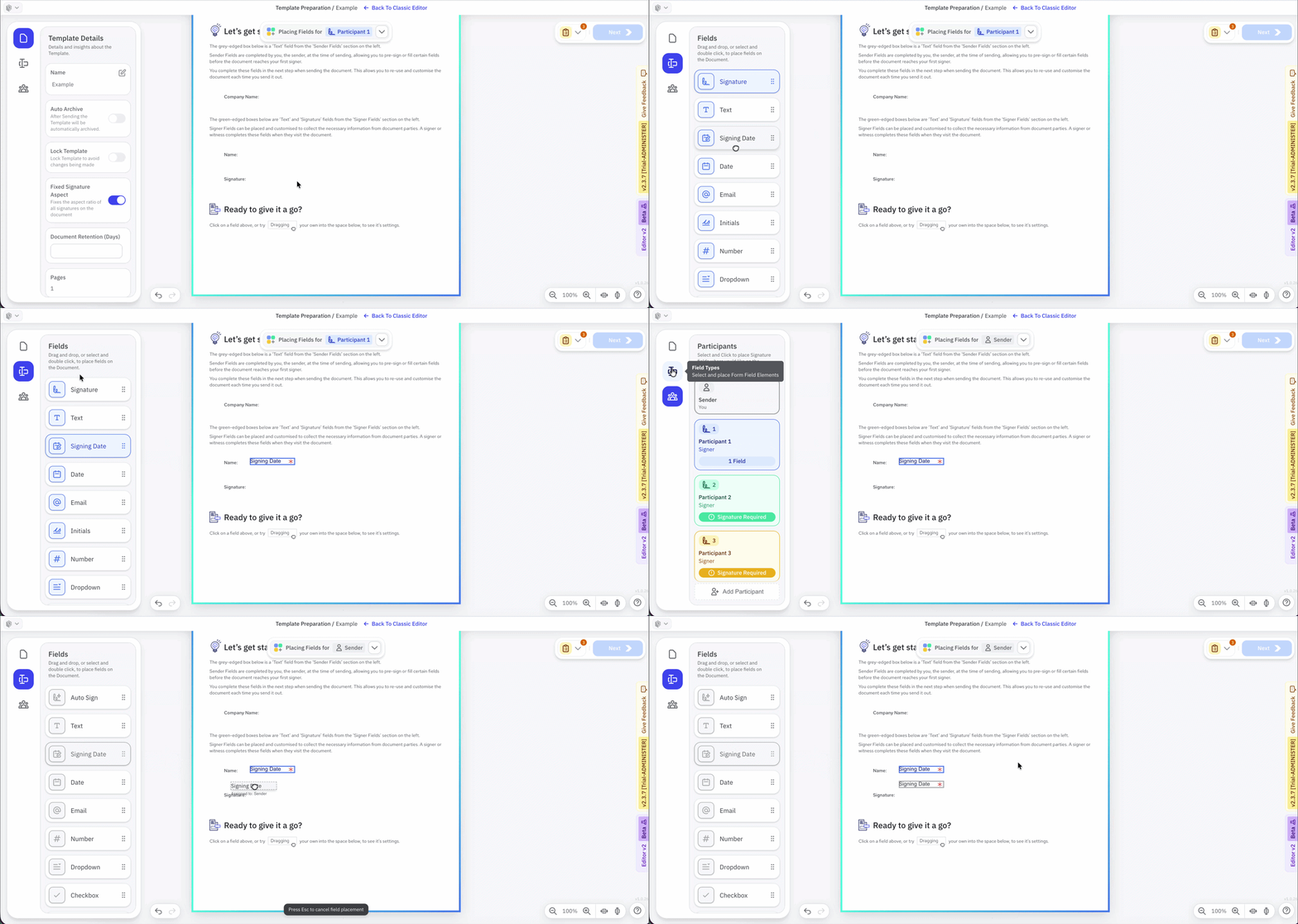
- Open the Template Preparation page.
- Select the participant the date field belongs to — Sender or the relevant signer.
- Drag and drop a Signing Date field onto the document.
- In Field Properties, open Content and set the content format to the signing date option.
Date formats
The following formats are available, selectable from the Content section of Field Properties:
| Format | Example |
|---|---|
| dd/mm/yyyy (Default) | 23/09/2026 |
| yyyy/mm/dd | 2026/09/23 |
| yy/mm/dd | 26/09/23 |
| dd/mm/yy | 23/09/26 |
| mm/dd/yyyy | 09/23/2026 |
| mm/dd/yy | 09/23/26 |
| yyyy.mm.dd | 2026.09.23 |
| yy.mm.dd | 26.09.23 |
| dd.mm.yyyy | 23.09.2026 |
| dd.mm.yy | 23.09.26 |
| mm.dd.yyyy | 09.23.2026 |
| mm.dd.yy | 09.23.26 |
| yyyy-mm-dd | 2026-09-23 |
| yy-mm-dd | 26-09-23 |
| dd-mm-yyyy | 23-09-2026 |
| dd-mm-yy | 23-09-26 |
| mm-dd-yyyy | 09-23-2026 |
| mm-dd-yy | 09-23-26 |
| d mmmm yyyy | 23 September 2026 |