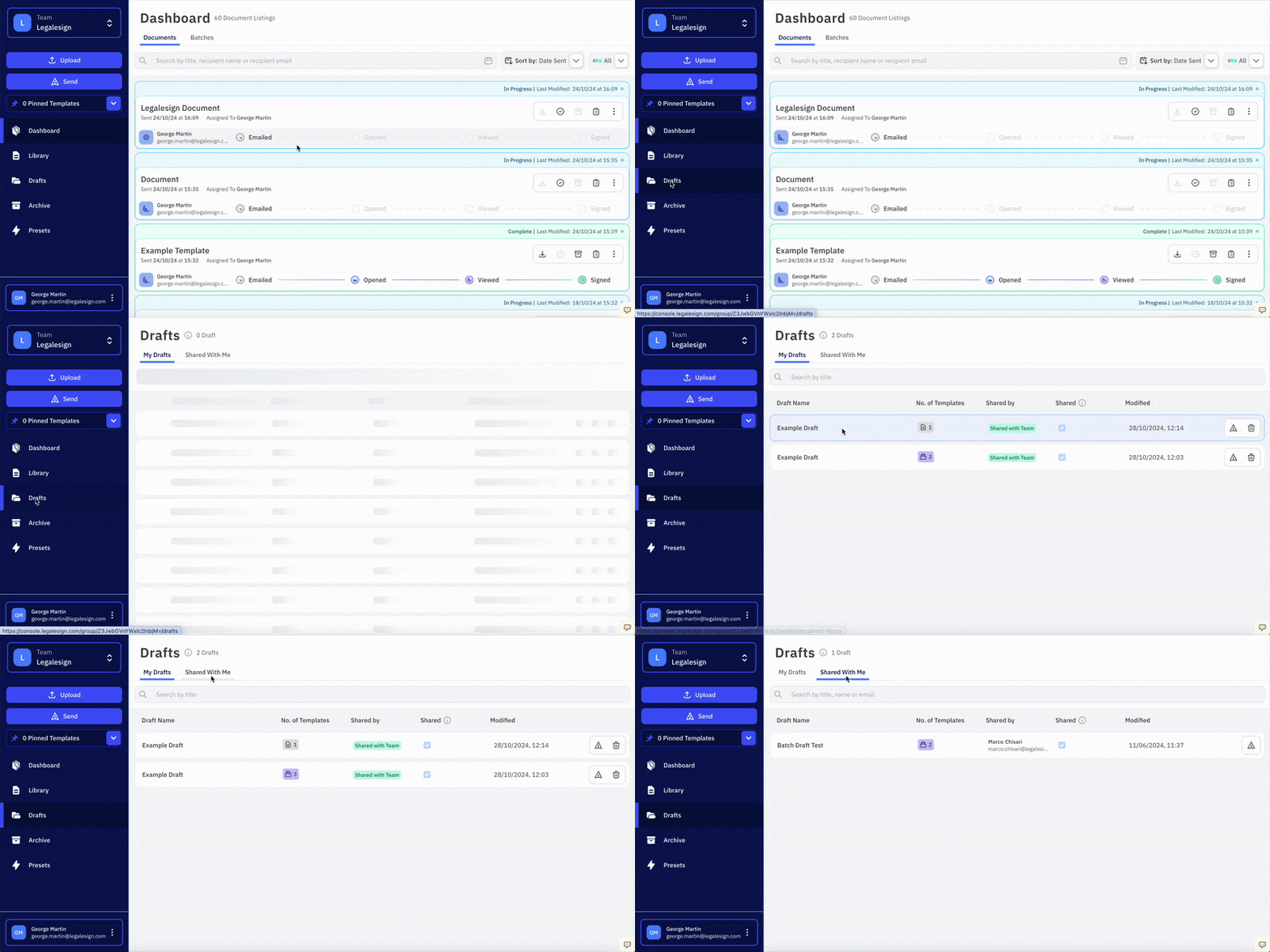
Drafts (beta)
A draft is a complete sending workflow saved for re-use. Use drafts when you repeatedly send similar documents or batches.
Create a draft
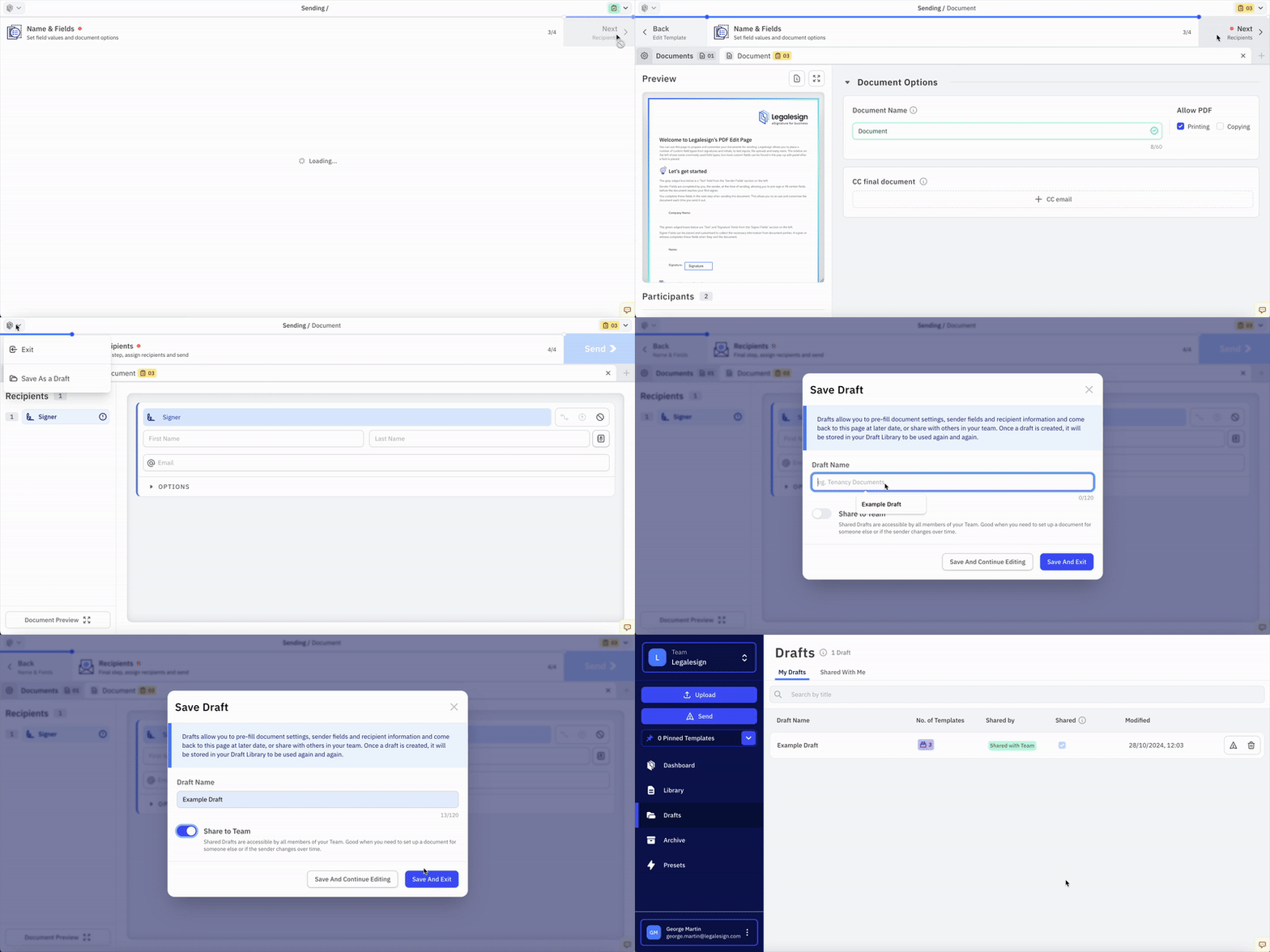
- Go to the Send page.
- Add your templates as usual.
- Fill in the Details and Recipients pages with as much as you want to save.
- Click the dropdown on the top left of the page and select Save as a Draft. You can optionally share it with your team at this point, or change that later.
Send from a draft
Go to Drafts in the left navigation, select your draft, click 'Prepare' and then update anything that needs to change for this send — recipients, form fields, the underlying PDF, PDF password, CC recipients, or any setting. Confirm 'Done' to finish updating, then 'Send'.
Editing mode and sending mode
Drafts have two modes:
- Editing mode — changes are saved to the draft itself.
- Sending mode — changes apply to the current send only and do not affect the saved draft or your library.
You can select which mode to enter from the Drafts list, or switch between modes using the circular switch icon at the top of the page.
note
In sending mode you can change anything for that send and it will not affect your saved draft or library.
Personal and shared drafts
Select Shared with Me on the Drafts page to access drafts shared by other users on your team.