Forms logic
Forms logic enables you to set up intelligent fields to react to other events on your form.
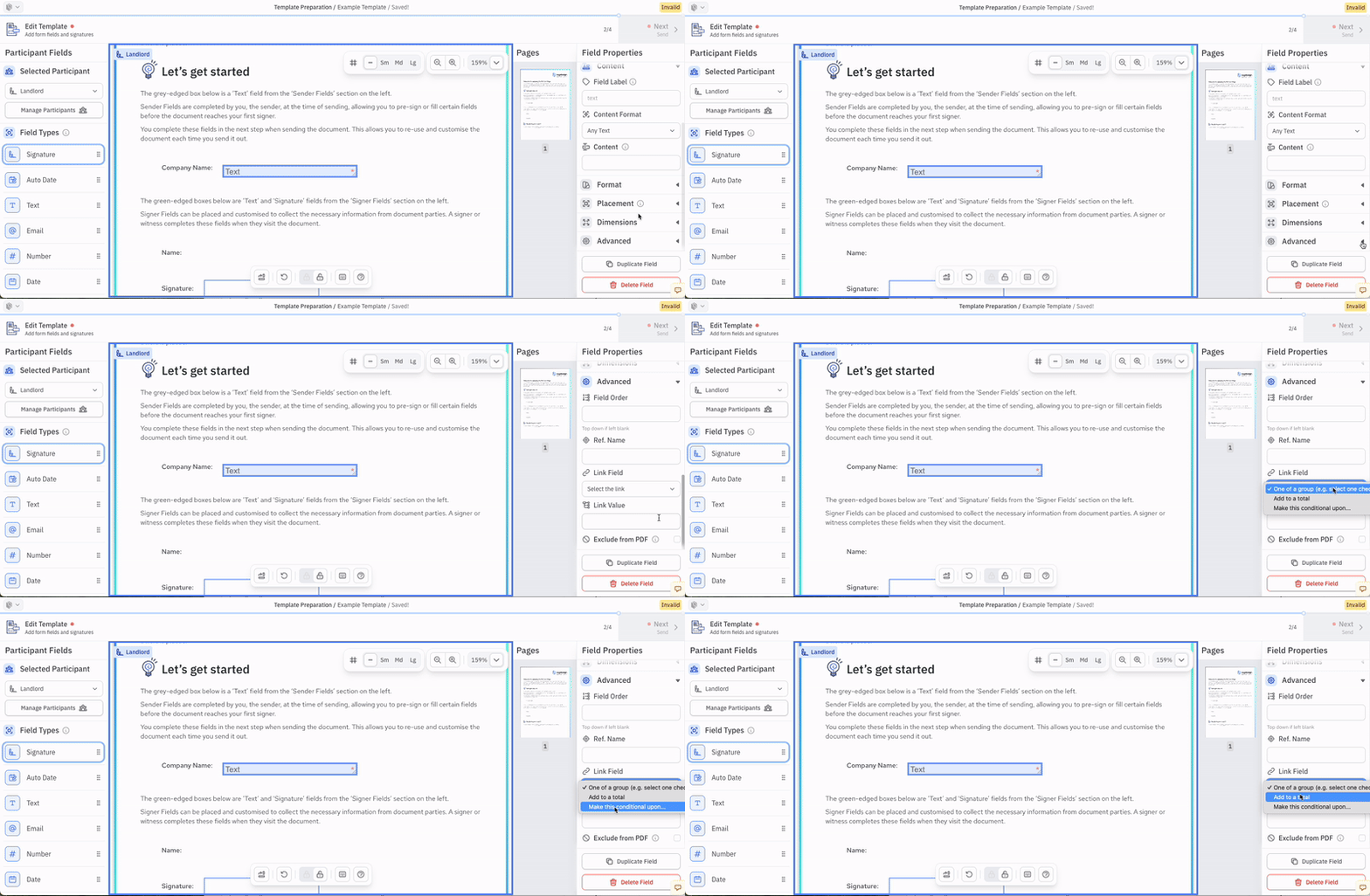
To access the logic settings, go to your document edit page, click on a signer's form field. When a field is selected, the Settings panel will show the Field Settings menu. This is spilt into three parts: Options, Format, and Advanced.
The Advanced options include "link field" and "link value", these are used for creating the logic connections between fields. "Link field" is a drop-down and shows you the three options available: "One of a group", "Add to a total", and "Conditional fields"
One of a group
One of a group enables you to add a set of tickboxes and have the signer select only one of those. Useful for choosing between options
Using lists of checkboxes on your forms is a leftover of paper forms. For eForms use a dropdown box - it's much better experience for your customers.
For each tickbox you want in the group go to the logic section and enter 'One of a group' from 'Link Field' and also the same word in 'Link Value' for each one (any A-Z word).
Add to a total
This function sums the numerical values within several fields to a single 'total' field. This field is useful for documents such as timesheets or expenses.
For each field that will contribute to the sum, make it optional then go to the logic section and select 'Add to total' and write the same value into 'link value' (use a short a-z word). Then enter that same word in the the 'ref name' input of the field in which you want the sum to appear.
Conditional fields
Conditional fields allow you to show or hide fields based on the value of another field (the controller field). A single controller field can be used to control one or more conditional fields.
Show fields when the value is YES or a checkbox is ticked
- Add a Dropdown or Checkbox field (the controller field).
- If using a dropdown, create an option called
YES. If using a checkbox, leave it as the default tick box. - Assign the controller field a Ref Name.
- Add one or more conditional fields. For each conditional field:
- Set Link Type to
Make this conditional upon. - Set Link Value to the controller field's Ref Name.
- Set Link Type to
Show fields for a specific dropdown value
You can display fields only when a dropdown contains a specific value.
- Add a Dropdown field (the controller field).
- Create the required dropdown options.
- Assign the controller field a Ref Name.
- Add one or more conditional fields. For each conditional field:
- Set Link Type to
Make this conditional upon. - Set Link Value using the format:
<Controller Ref Name>,<Dropdown Value>
- Set Link Type to
Multiple conditional routes
A single controller field can control multiple groups of fields. For example, if you have a dropdown called Reason for Enquiry with options Complaint, Sales Enquiry, and Technical Support, and a Ref Name of Reason:
- If
Reason=Complaint— display the complaint details fields. - If
Reason=Sales Enquiry— display the sales enquiry fields. - If
Reason=Technical Support— display the technical support fields.
Each group of conditional fields references the same controller field but uses a different Link Value:
Reason,Complaint
Reason,Sales Enquiry
Reason,Technical Support
This allows you to create dynamic forms where different sections are displayed depending on the option selected by the user.