How to add a user
Admins can add users from the Users page.
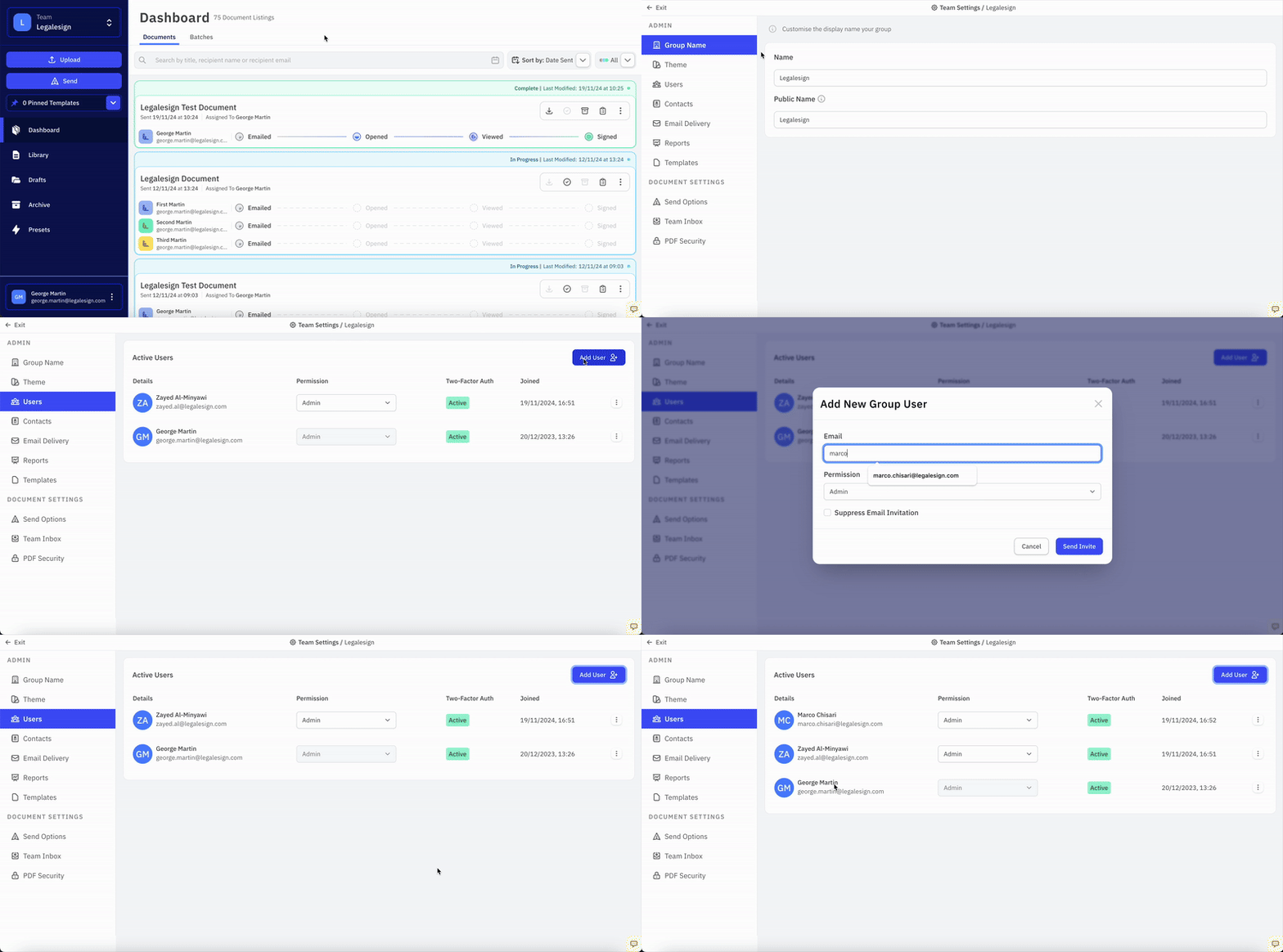
Click your team name on the top left of the screen, click on the ⚙ cogwheel icon on the right of the dropdown menu to visit the Group Settings page, and then click Users.
Add a user
To add a new user:
- Click Add User + in the top-right corner.
- Enter the new user's email address.
- Choose the permission level you want them to have.
- If the user already exists or will sign in through SSO, tick Suppress Email Invitation.
- Confirm the new user entry.
The user will then appear on the Users page, where you can review or change their access later.
Use Suppress Email Invitation only when you do not want Legalesign to send the normal invite email, for example when the user already exists or will authenticate through your own sign-in flow.
Related tasks
For the wider user-management model, see Team and Account Administration.
For related actions, use: