File upload fields
File Upload fields add a file attachment step for recipients when they complete a document — for example, Photo ID, bank statements, or other supporting documentation.
There are three types:
File: Attach to confirmatory email
Includes the upload as an email attachment to the sender once the document completes. This is the most flexible option and keeps the file separate from the completed document.
File: Append to PDF (PDF files only)
Appends the uploaded file directly to the document when it completes. Only PDF files can be uploaded. Use this when the file must remain inseparable from the final document.
File: Zip with PDF
Compresses all signer uploads into a single ZIP file and emails it to the sender when the document completes. Use this when you expect multiple uploads.

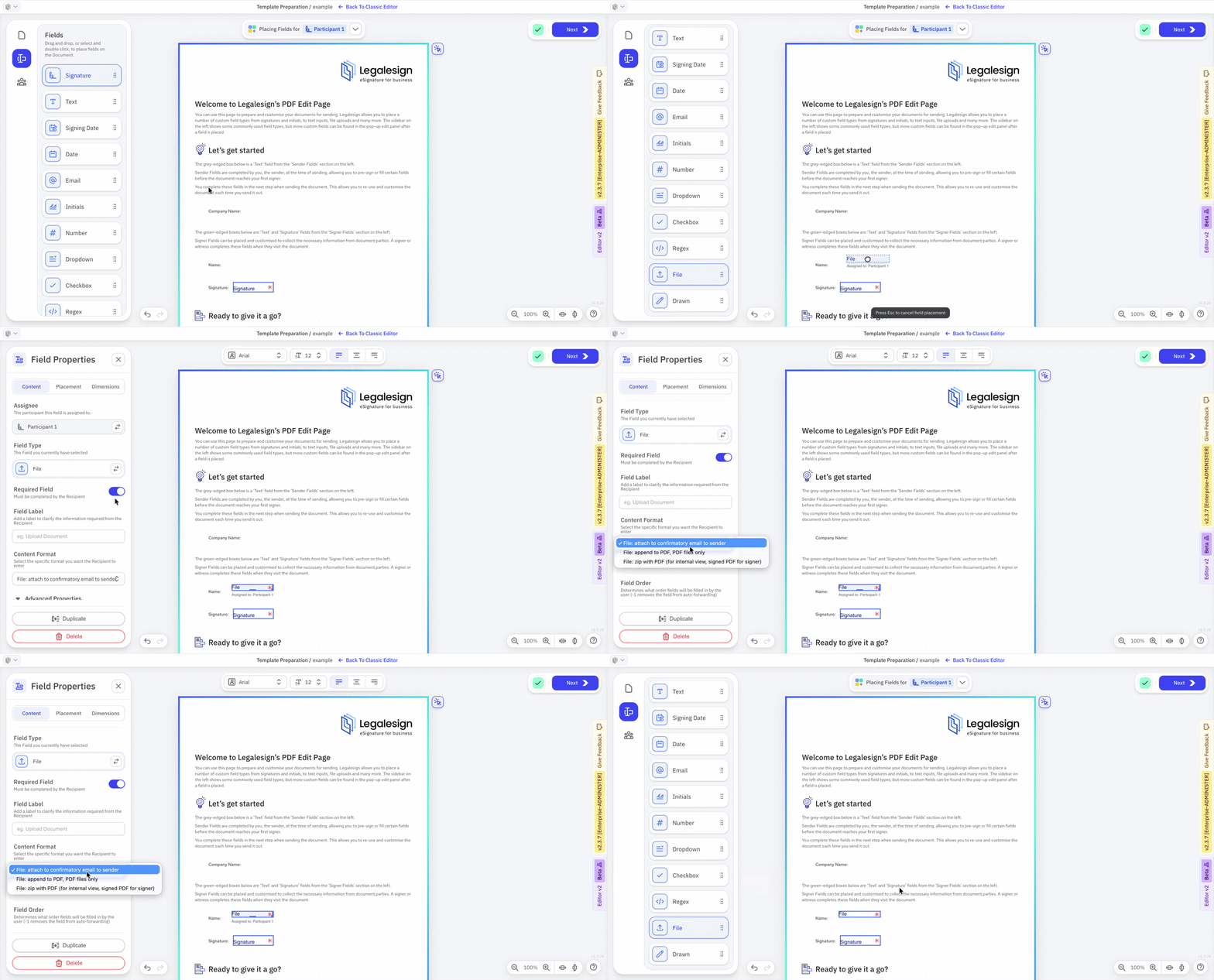
- Go to the template's Edit Fields page.
- Select the intended recipient.
- Drag and drop a File field onto the document.
- Click Content Format.
- Select your desired file upload type from the dropdown.
Alternatively, convert an existing field to a File Upload field by changing its Field type to File in Field Properties.
On the signing page, the File Upload field contains a Choose file button for the recipient to search their device for the file.
