How to change the size and shape of Fields
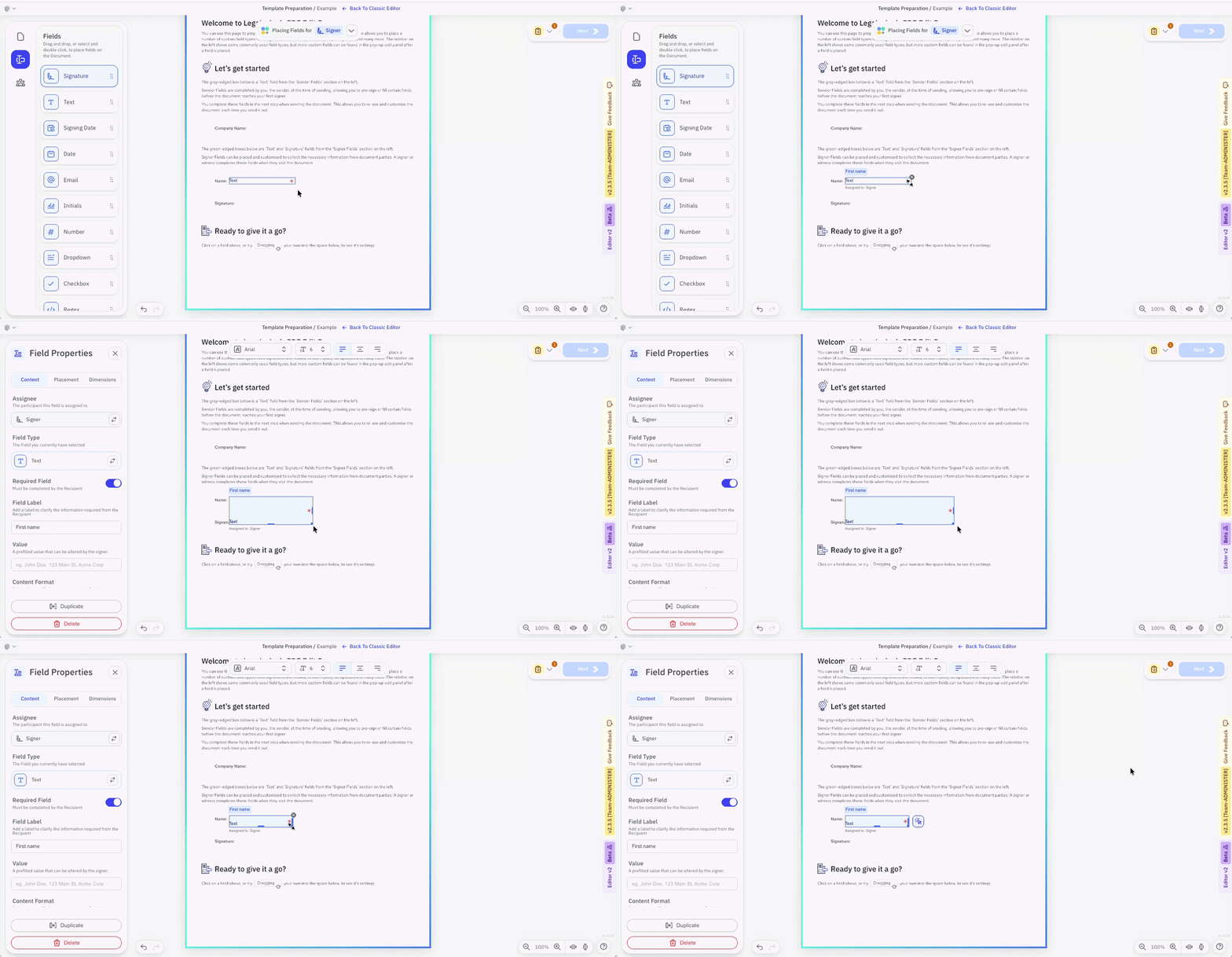
When a signer field or sender field is created it appears as a standard size and shape. Change this by dragging the lower or right edge to expand or deepen the field, or the lower right corner to do both. The mouse will change to a pointer format when in position.
To specify the dimensions precisely:
-
First click on the field
-
Select Dimensions from the Field Properties tab on the left.
-
Alter the height and width as required
If you want to set several fields to the same height or width, drag your mouse over them to select them all and go to the Dimensions section and use the 'Scale and Resize' buttons with the Dimensions tab.

Once your fields are the same size, if you wish to align them, click the 'Placement' tab in Field Properties and use the Alignment buttons provided.
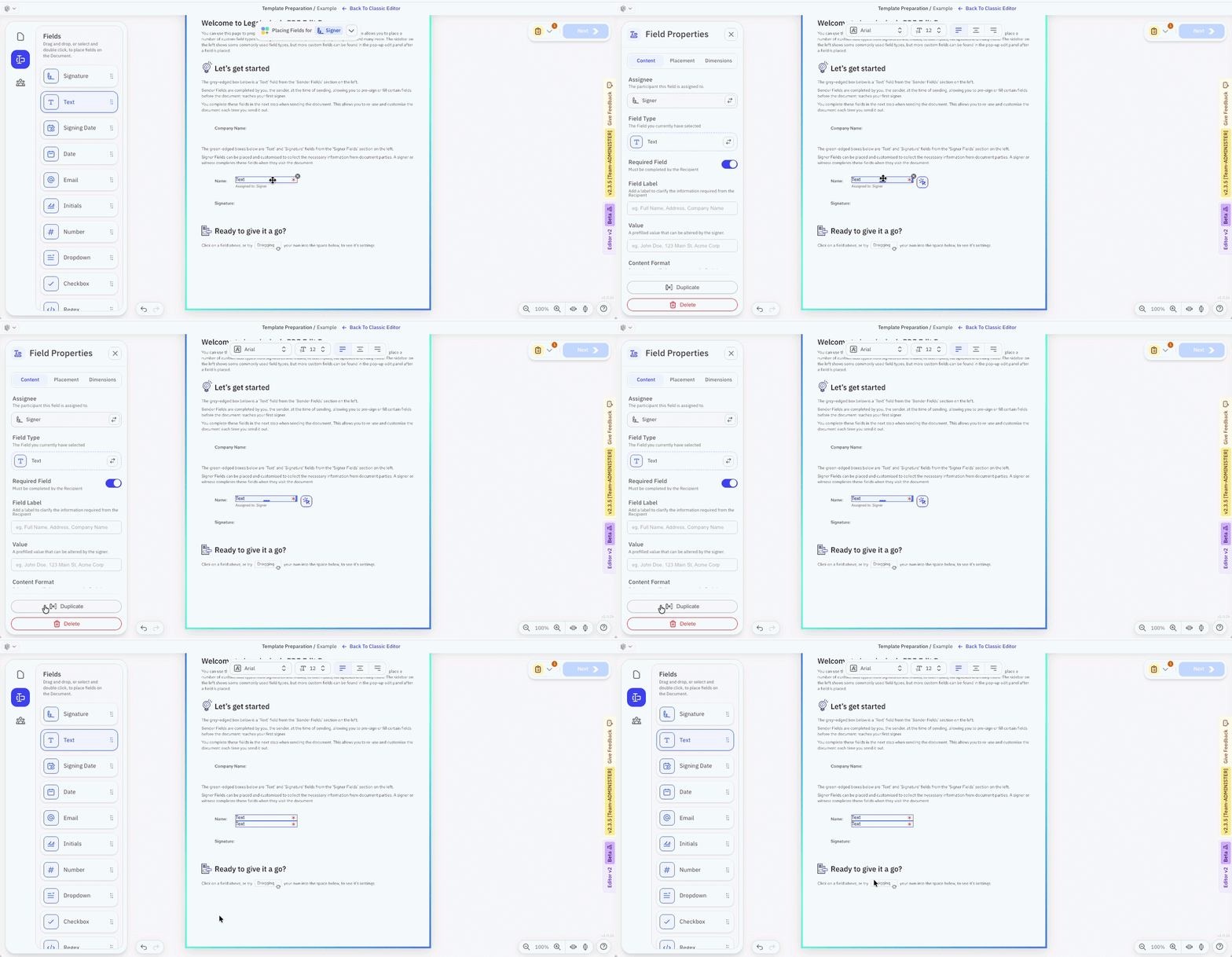
Duplicate a field by selecting it and pressing D on your keyboard. If you select multiple fields, all those fields will be duplicated.
You find the duplicate button at the foot of the Field Properties section.