How to remove a user
Admins can remove users from the Users page.
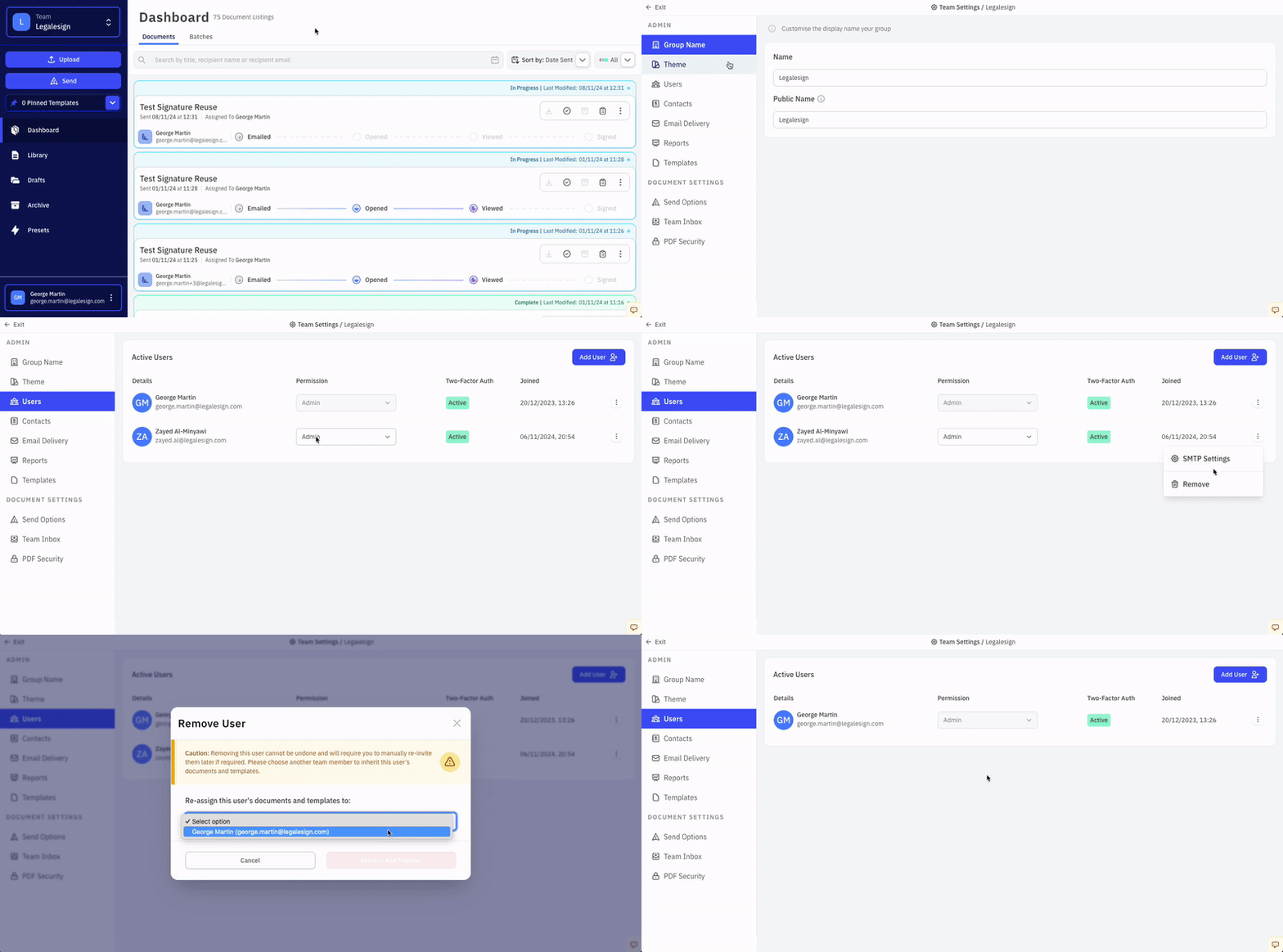
- Click your team name on the top left of the screen.
- Click the ⚙ cogwheel icon on the right of the dropdown menu to open Group Settings.
- Click Users.
- Find the user you want to remove and click Remove from team.
- If the user still owns live documents, choose whether to reassign them before removing the user.
- Tick the confirmation box and click Remove this person.
When you remove a user from a team, they immediately lose access to it.
If the user has live documents, reassign them during removal so work stays with the right owner. If you add the person back later, their documents are not reassigned automatically.
Related tasks:
For the wider user-management workflow, see Team and Account Administration.