Upload a template
To upload and send a simple document, use the Quick Send feature — that takes you through a fast, simplified process to get your document sent.
For a document with more complex fields, or to store it for re-use, upload your document first. Upload supports multiple file types, multiple files at once, and merging PDFs into a single template.
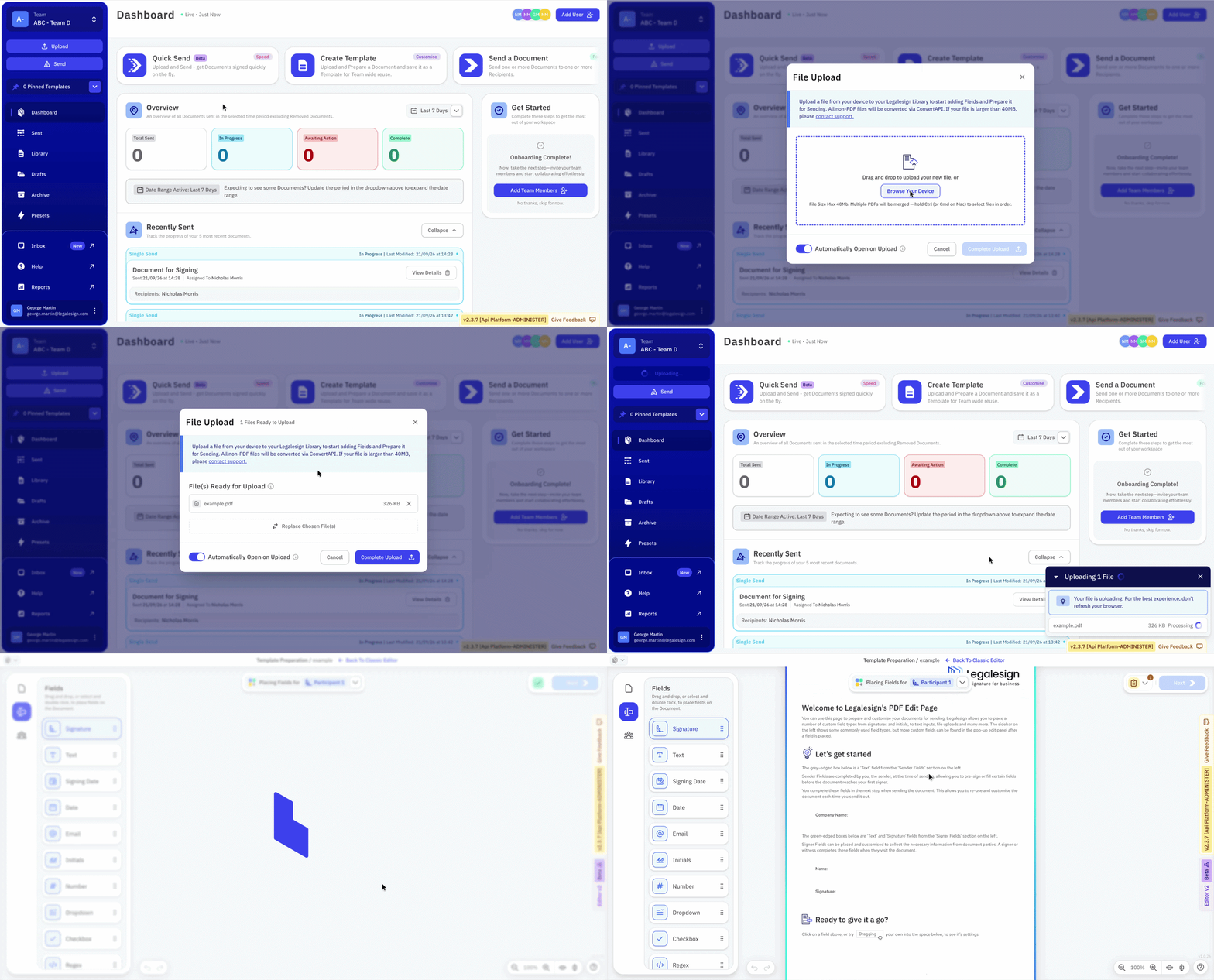
- Click the Upload button on the left-hand side of the screen.
- Click Browse Your Device.
- Select the file or files you want to upload. Supported formats are:
- Word
- Excel
- Images
- HTML
- Plain text
- Markdown
- To upload multiple files, drag and drop the files you need.
- If you want to merge multiple files into one template, select the Merge Files checkbox. Merging requires PDF format only.
- Click Complete Upload in the lower right corner of the dialog.
tip
If you upload a single file, you are redirected to the editor automatically. To disable this, uncheck Automatically open on Upload before clicking Complete Upload.
Next step
- Template preparation — place and configure fields once your template is uploaded