How to upload your signature (for auto-sign)
The My Signature feature lets you upload your own signature image to your account. Your saved signature can be used in two ways:
- Auto-sign on send — add a My Signature field to a document template (a Sender field). When the document is sent, your signature is applied to that field automatically.
- Pre-saved signature when signing — when you are a recipient signing a document, your saved signature is available to select on the signing page instead of drawing or typing one.
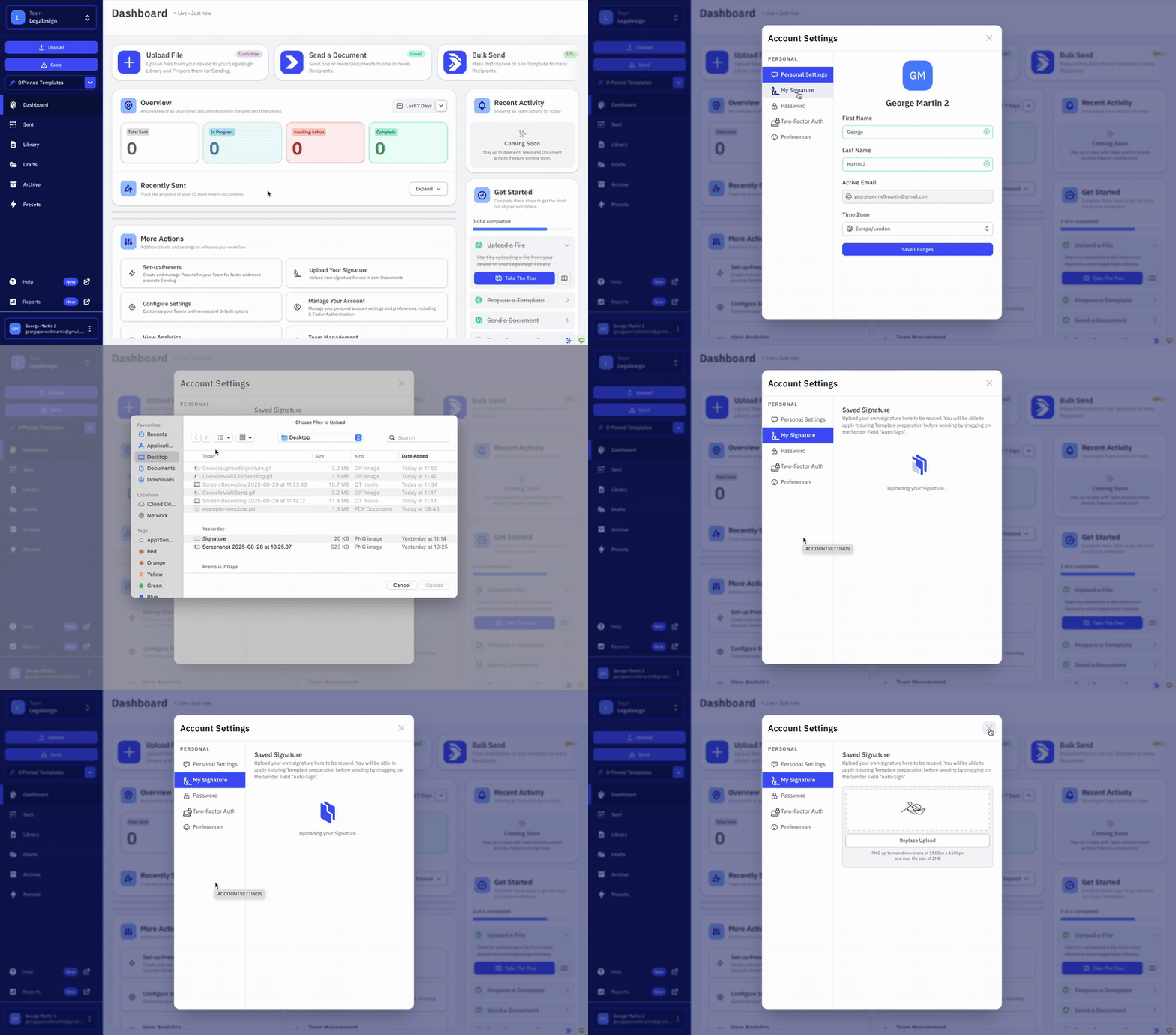
To upload your signature:
-
Click on your name in the bottom-left corner.
-
Go to Account Settings.
-
Then to My Signature.
-
Click Upload Signature or Replace Signature
-
Upload a signature image from your device
-
Click 'Save Changes' to confirm.
If you don't have a signature image you can create one by taking a photo or screenshot of your signature and uploading it to your device.
Inbox is different
Where your signature is applied as 'auto-sign' upon sending, you are not a recipient and the document will not appera in your inbox. If you are added as a recipient on a document and need to sign it yourself, it will appear in your Inbox instead.