How to use the Legalesign Microsoft Word Add-In
The Legalesign Microsoft Word Add-In lets you prepare a document in Microsoft Word, place signature fields, and send it for e-signature through your Legalesign account.
Use this page if you need help installing, signing in, preparing a document, sending to one recipient or multiple recipients, or contacting support.
How to install
Once the add-in is available, users will usually install it from within Microsoft Word:
- Open Microsoft Word.
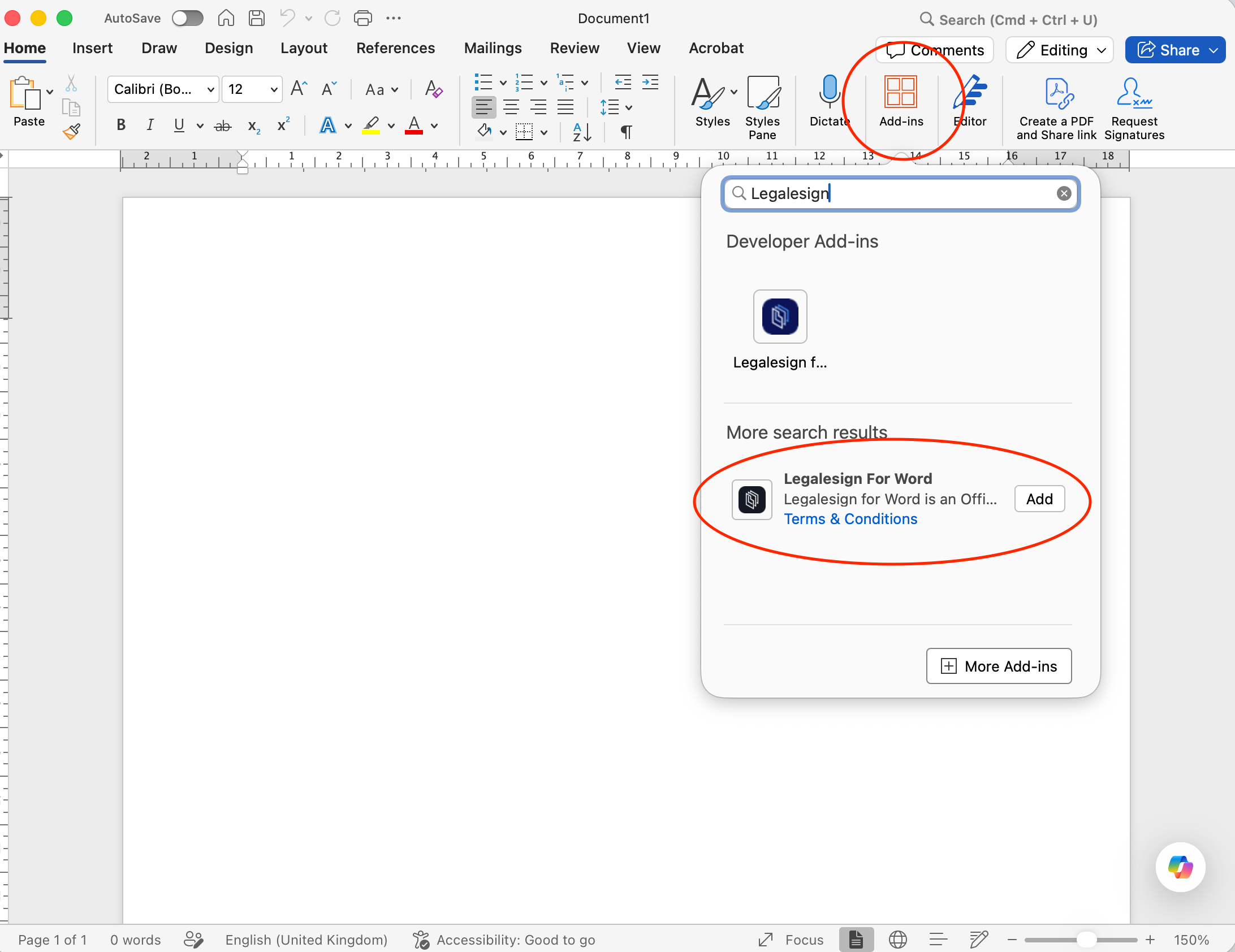
- Go to Home and select Add-ins.
- Select More Add-ins.
- Search for Legalesign in the Office Add-ins store.
- Select the Legalesign Microsoft Word Add-In.
- Select Add to install it.
- Open the add-in in Word and sign in with your Legalesign account.
In some versions of Word, the add-in store may also be available from File > Get Add-ins.
If your organisation manages Microsoft 365 centrally, your Microsoft 365 administrator may install or make the add-in available for users.
Before you start
To use the add-in, you need:
- A Legalesign account.
- Permission to send documents from your Legalesign account or team.
- Access to Microsoft Word with the Legalesign Word Add-In installed.
- An internet connection so Word can connect to Legalesign services.
If you cannot sign in or send documents, first confirm that your Legalesign account is active and that you have access to the correct team.
What the add-in does
With the Legalesign Microsoft Word Add-In you can:
- Open the add-in from within Microsoft Word.
- Sign in with your Legalesign account.
- Add signature placeholders and prepare the document for signing.
- Send the document to one recipient or multiple recipients.
- Use your existing Legalesign workflow without leaving Word.
How to use the Word Add-In
- Open your document in Microsoft Word.
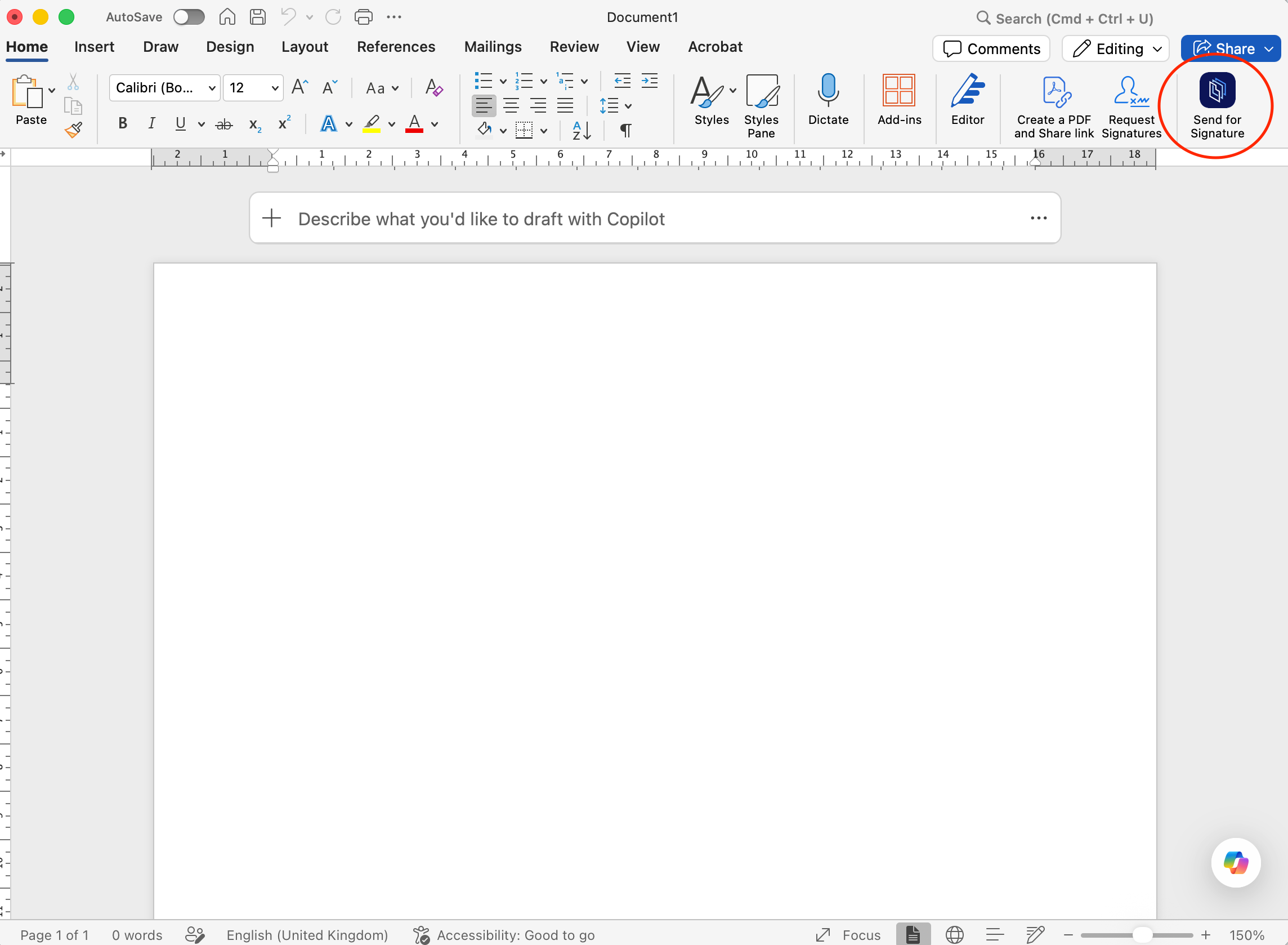
- Click the the Send for Signature tab - see image below.
- Sign in with your Legalesign account.
- Add the signature fields or other required signing elements to the document.
- Enter the recipient details.
- Choose whether to send to a single recipient or to multiple recipients.
- Review the document and recipient information.
- Send the document through your Legalesign account.
After sending, you can track progress in Legalesign.
Sending to multiple recipients
If your document needs more than one person to sign:
- Add each recipient in the add-in before sending.
- Check that each signature field is assigned to the correct recipient.
- Review the recipient order if your workflow requires people to sign in sequence.
- Send the document once all recipients and fields are complete.
If a document is sent with missing recipient details or unassigned fields, the send may fail or produce an incomplete signing workflow.
Common issues
I cannot sign in
Check that:
- You are using the correct Legalesign email address and password.
- Your Legalesign account is active.
- Your browser or Microsoft 365 session is not blocking the add-in sign-in flow.
- Your network allows access to Legalesign.
If the issue continues, contact support.
The add-in does not load in Word
Check that:
- The add-in is installed correctly in Microsoft Word.
- Word is connected to the internet.
- Your Microsoft 365 environment allows Office add-ins.
- You close and reopen Word after installation if required.
If your organisation manages Office centrally, your Microsoft 365 administrator may need to confirm add-in availability or policy settings.
I cannot send the document
Check that:
- You are signed in to the correct Legalesign account.
- The document has all required signature fields.
- Every recipient has been added correctly.
- Your account or team has permission to send documents.
For the main sending workflow in Legalesign, see Standard Send.
Recipients did not receive the email
If a document has been sent but a recipient has not received the email, see What to do if an email fails to reach a recipient.
Support
For help with the Legalesign Microsoft Word Add-In, create a support ticket at support.legalesign.com ↗.
When contacting support, include:
- Your Legalesign account email address.
- Whether the issue happened during sign-in, field placement, or sending.
- Whether the problem affects one document or every document.
- Any error message shown in Word or in the add-in.
- Screenshots if available.