Bulk Send Documents for mass signing
One-click bulk send allows you to send documents to thousands of people simultaneously. For example, if you need to mass distribute a policy update or issue an annual payroll enrolment for your company.
Each document can be individually customised using a prepared CSV file, to help personalise your documents or pre-fill information relevant to each recipient.
If you are deciding between grouped sends, multi-send, and CSV-driven mass dispatch, see Batching, Multi-send, and Bulk Send.
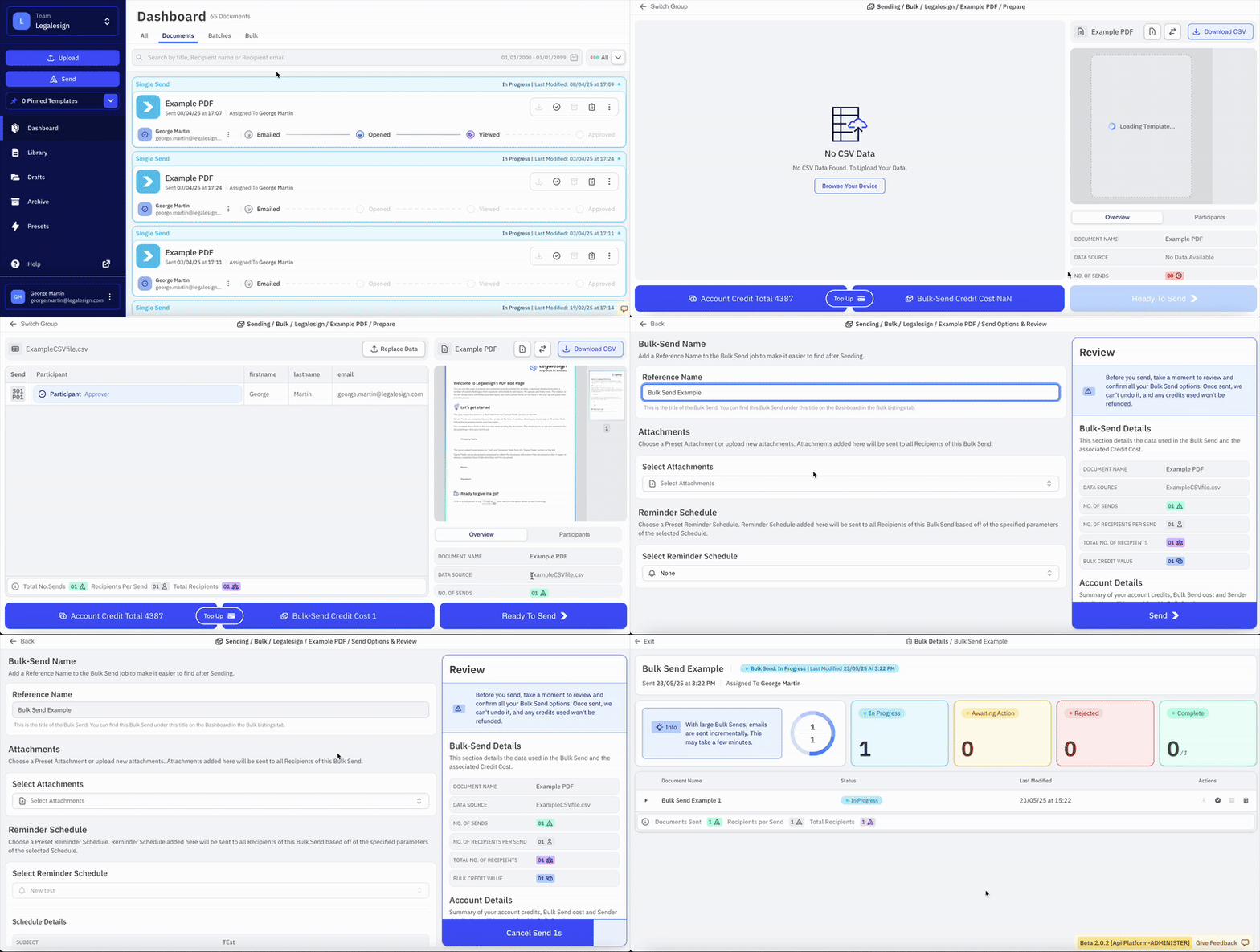
To begin click "Send" on the left navbar and then select "Bulk Send" on the pop-up. Select a Template and then upload a pre-prepared CSV file (see below for details) and then add a reference name and include reminder schedules and any attachments.
Finally click Send to dispatch the document to all recipients.
Prepare a Bulk Send CSV
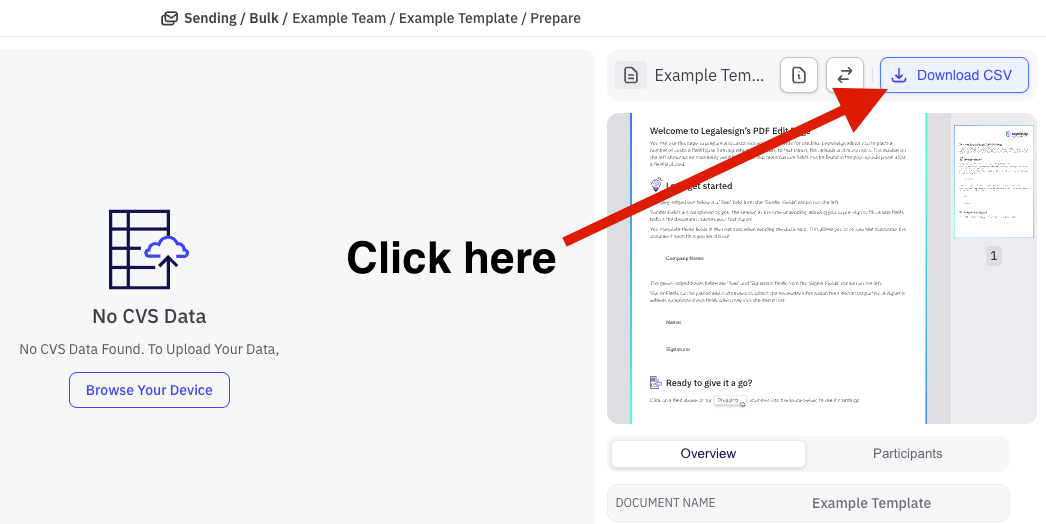
- Download a CSV file from the Bulk Send page.
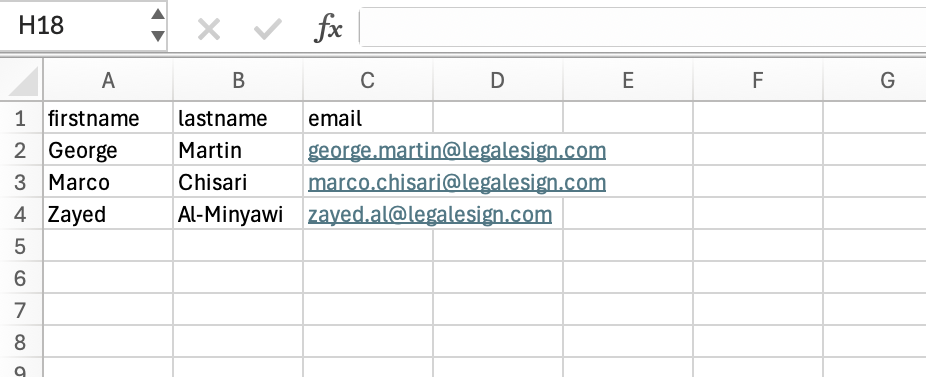
- Fill in the three required columns:
firstnamelastnameemail
- Make a new row for each recipient.
Here's what a simple Bulk Send CSV might look like:
Migrating Bulk Send from App1 to Console will involve these CSV changes:
- Remove the space from
firstnameandlastname. - Add an underscore
_to the beginning of any sender fields. - Some reserved headings have changed names.
Documents for multiple recipients
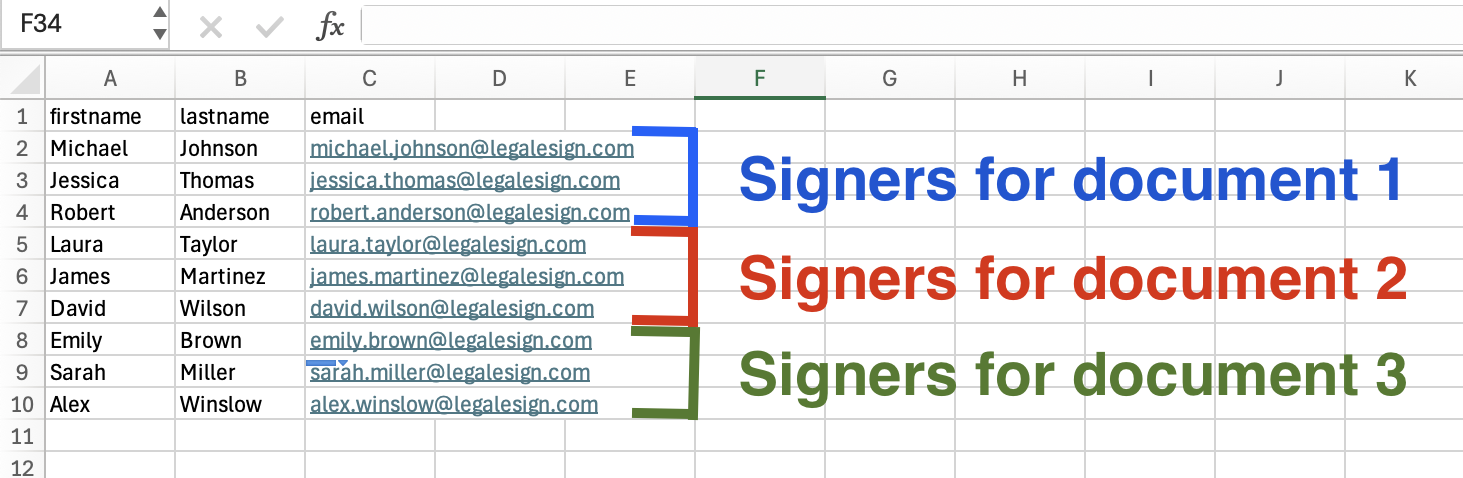
For multi-recipient documents the system will split the rows of the CSV to match (e.g. if you have three participants in your Template then rows 2/3/4 will be Participants 1,2, & 3 of your document respectively.)
Sender field labels
If your Template contains Sender fields then add each sender field label as a new column header with an underscore "_" before the header value. Then input the Sender Field information in the column directly below.
Optional headings
These headings can be added as additional columns in your CSV file. This allows you to customise each document within the bulk send:
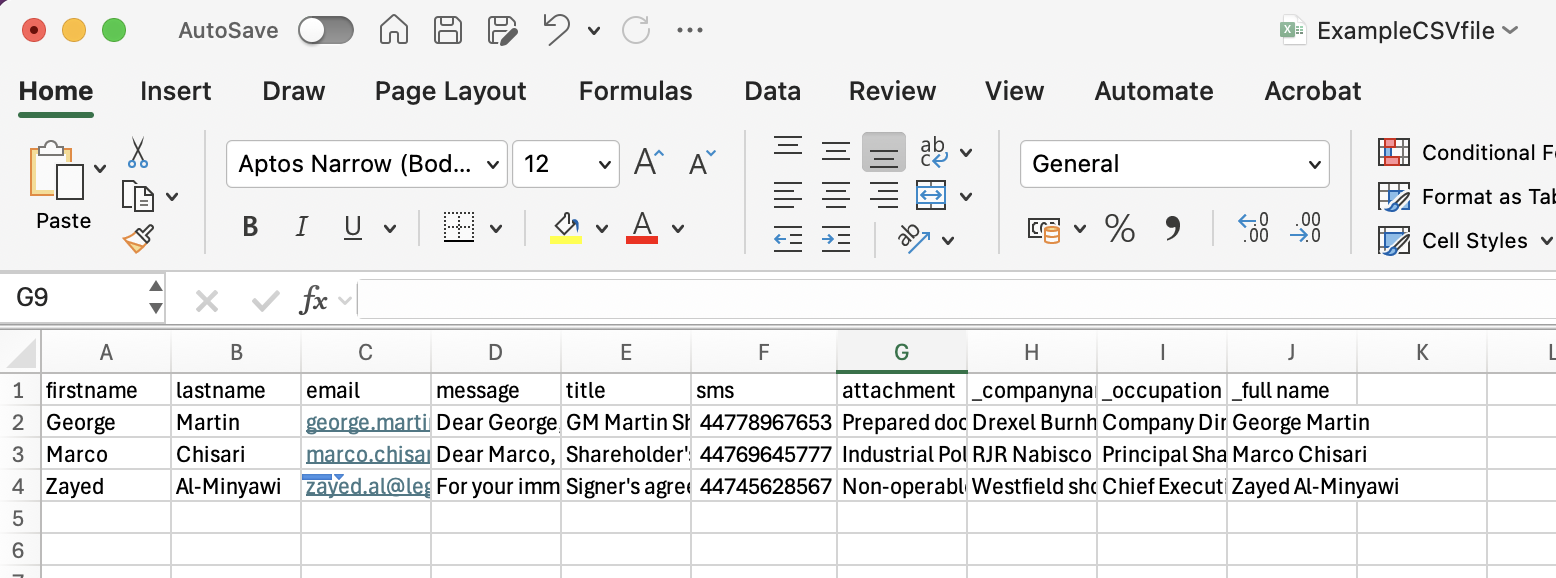
message: include a personalised message for each recipienttitle: set a different title for each document; otherwise the reference name is used by defaultsms: add an SMS phone number if required for verificationattachment: add IDs of attachments to use with the document
Here is a file with every reserved heading along with three sender fields:
Decide later
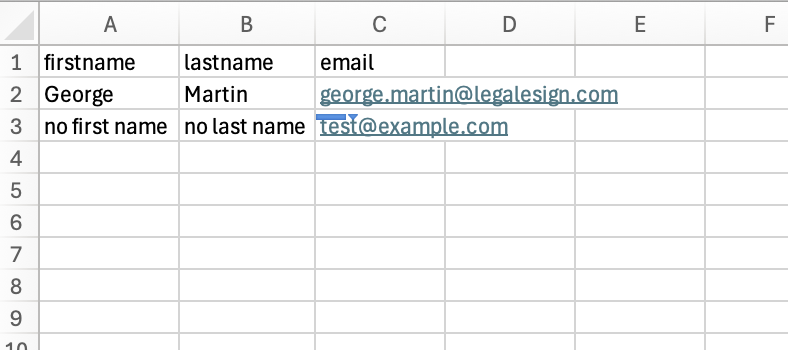
To specify a recipient should be decided later then insert "no first name" into the firstname column, insert "no last name" into the lastname column, and "test@example.com" into the email column.
The recipient directly above them will then be required to insert their contact details on the signing page.
If Bulk Sending documents still isn't enough for your needs, consider using the Legalesign API.