Text Tags reference
Text tags are specially formatted markers placed in a Word or PDF document. When Legalesign processes the file, those tags are converted into signature or form fields automatically.
Use text tags when you want to generate fields from the source document instead of placing them manually in template preparation.
Before you use text tags
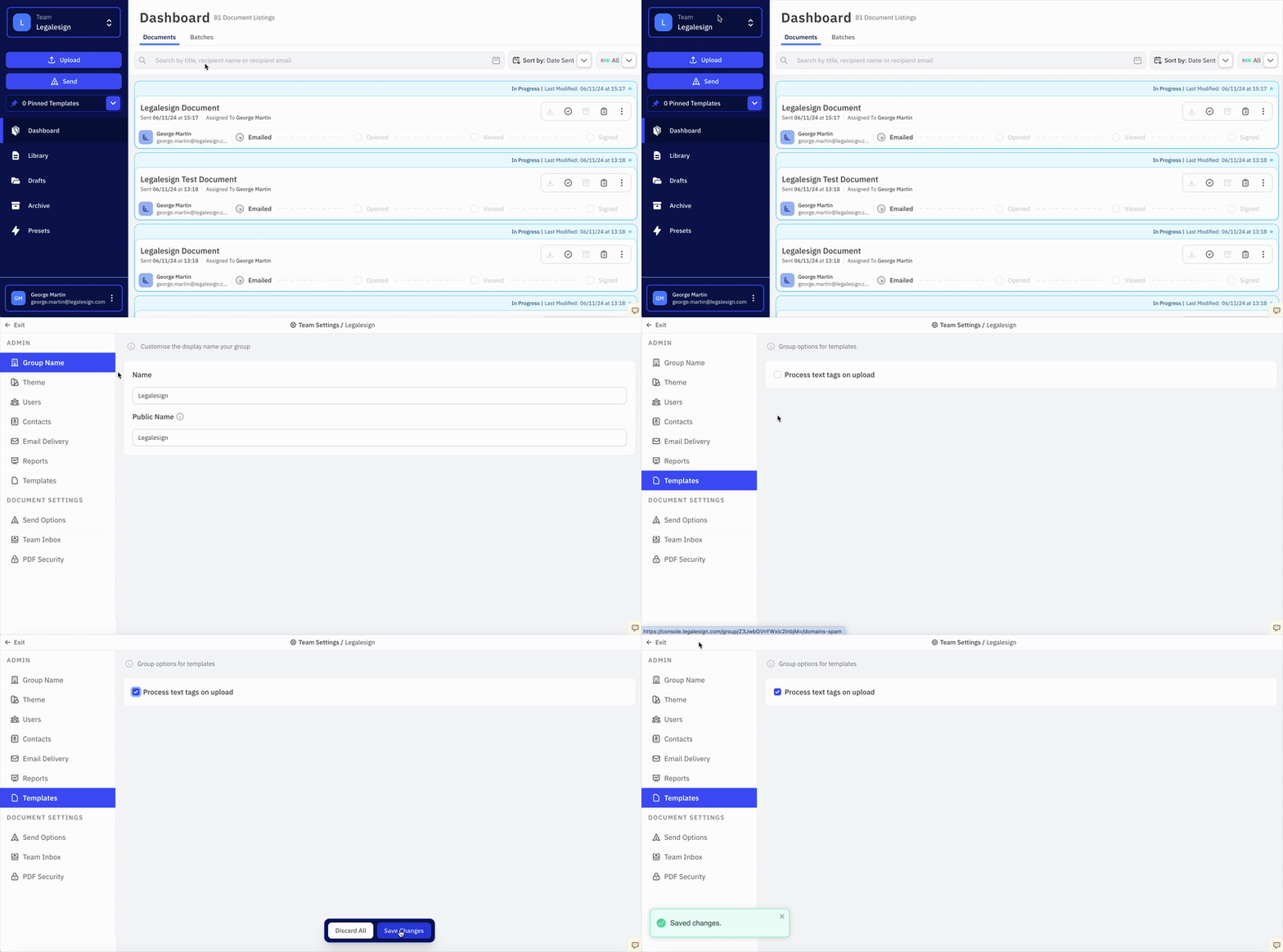
To process text tags on upload, go to Group Settings > Templates, enable Process text tags on upload, and save the change.
Basic syntax
A simple signature tag looks like this:
<<t=signature>>
The << and >> markers tell Legalesign to interpret the content as a text tag.
The content inside the tag is made up of attributes:
- long form, for example
type=signature - terse form, for example
t=signature
Multiple attributes are separated with semicolons:
<<type=signature;signer=1>>
Terse version:
<<t=signature;s=1>>
Shortcuts
For common fields you can skip the full attribute syntax and use a simpler format:
<<signature>>— adds a signature field for signer 1<<initials>>— adds an initials field for signer 1<<Full Name>>— adds a text field labelled "Full Name" (can be any label, see below) for signer 1 to fill out
To assign a shortcut to a different signer, add the signer number to the end:
<<signature2>>— signature field for signer 2<<initials3>>— initials field for signer 3<<Full Name2>>— text field for signer 2
The label can contain letters, numbers, spaces, hyphens, and apostrophes. If the last character is a number, Legalesign treats it as the signer number. If there's no number at the end, it defaults to signer 1.
A special case is your own signature for that use:
<<autosign>>— see My Signature (auto-sign)
For full control over field type, formatting, validation, and other options, use the full attribute syntax below.
How to specify a signer
If you do not specify a signer, Legalesign assumes the field is for signer 1.
Participant numbers work like this:
- signers:
1to99 - witnesses:
101to199
Examples:
s=3means signer 3s=103means the witness associated with signer 3
Approvers are treated as signers without a signature field.
Common rules
Font size
If you do not set fontsize or fs, Legalesign attempts to infer the size from the document.
Field width
Field width is based on the distance between the first < and the last >. Add spaces inside the tag to increase width. Reduce width by using terse attributes, smaller text, or an explicit font size.
Field height
Use height or h as a multiplier on the current line height:
h=2doubles the heighth=0.5halves the height
The h attribute does not apply to signatures or initials because those use a fixed aspect ratio.
Background
Field background is always white.
Required vs optional
Fields are required by default. Use r=0 to make a field optional.
For checkboxes, set r=0 if the signer should be able to leave the box unticked.
Supported field types
Legalesign supports four core text-tag field types:
sender: completed during sendingsigner: completed by a signersignature: signature fieldinitials: initials field
Known issues
Position extraction from PDFs is sensitive to layout. Avoid:
- tags that break across lines
- tags that use a different font or text height from the surrounding content
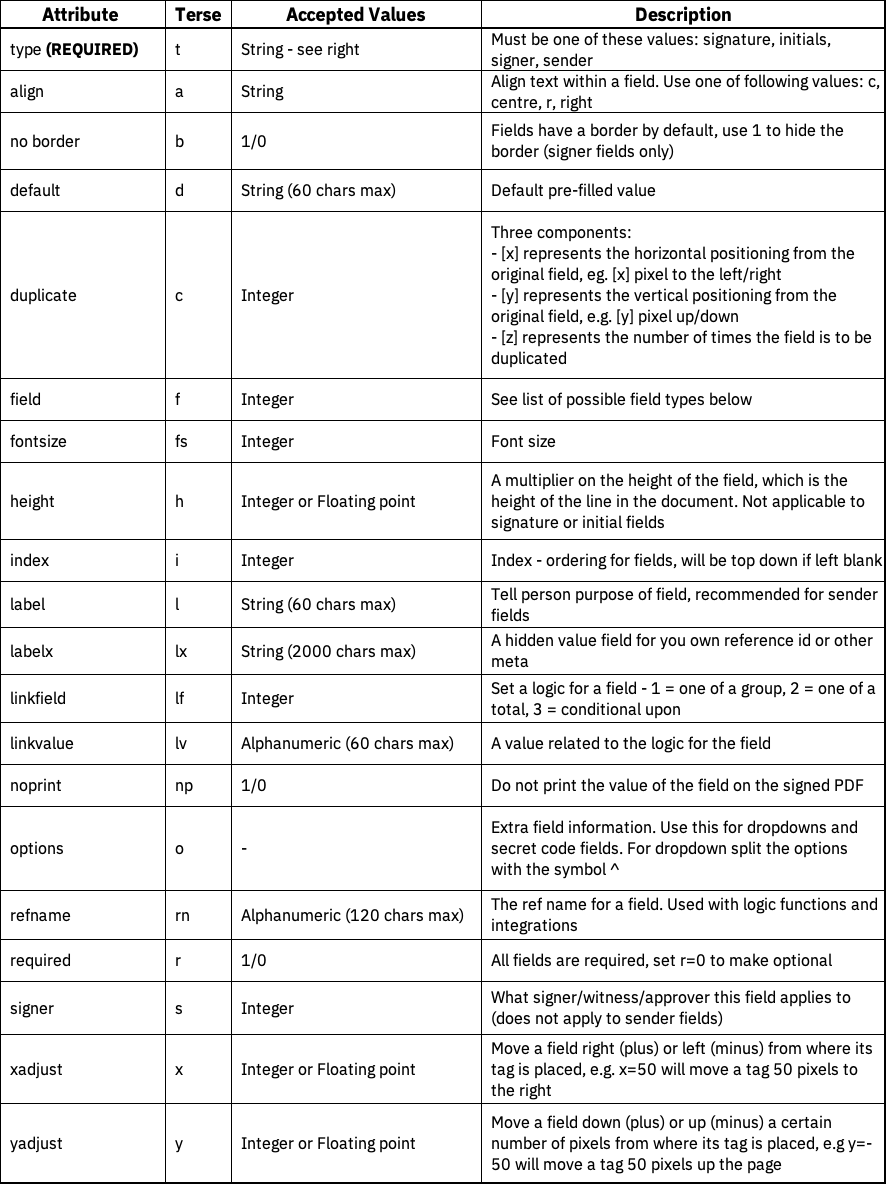
Attribute reference
The only required attribute is type or t.
Examples
A signature for one signer:
<<t=signature>>
Required sender field with label Our business, default value My Biz Name, and font size 12:
<<t=sender;l=Our business;d=My Biz Name;fs=12>>
Required signer field for the first signer, requiring an email value:
<<t=signer;s=1;f=1>>
Optional dropdown field for signer 1 with three values:
<<t=signer;s=1;r=0;f=20;o=something^or^other>>
Required signer field for signer 1, widened and three times the normal line height:
<<t=signer;s=1;h=3; >>
Field codes for the f attribute
Use the field or f attribute to change appearance or validation on sender and signer fields.
- 1 = Email
- 2 = yyyy/mm/dd
- 3 = yy/mm/dd
- 4 = dd/mm/yyyy
- 5 = dd/mm/yy
- 6 = mm/dd/yyyy
- 7 = mm/dd/yy
- 8 = yyyy.mm.dd
- 9 = yy.mm.dd
- 10 = dd.mm.yyyy
- 11 = dd.mm.yy
- 12 = mm.dd.yyyy
- 13 = mm.dd.yy
- 14 = yyyy-mm-dd
- 15 = yy-mm-dd
- 16 = dd-mm-yyyy
- 17 = dd-mm-yy
- 18 = mm-dd-yyyy
- 19 = mm-dd-yy
- 20 = Dropdown, using the
optionsattribute - 24 =
✓/✗ - 25 =
✓/ blank - 26 =
✗/ blank - 30 = yyyy/mm/dd auto sign day, signer only
- 31 = yy/mm/dd auto sign day, signer only
- 32 = dd/mm/yyyy auto sign day, signer only
- 33 = dd/mm/yy auto sign day, signer only
- 34 = mm/dd/yyyy auto sign day, signer only
- 35 = mm/dd/yy auto sign day, signer only
- 36 = yyyy.mm.dd auto sign day, signer only
- 37 = yy.mm.dd auto sign day, signer only
- 38 = dd.mm.yyyy auto sign day, signer only
- 39 = dd.mm.yy auto sign day, signer only
- 40 = mm.dd.yyyy auto sign day, signer only
- 41 = mm.dd.yy auto sign day, signer only
- 42 = yyyy-mm-dd auto sign day, signer only
- 43 = yy-mm-dd auto sign day, signer only
- 44 = dd-mm-yyyy auto sign day, signer only
- 45 = dd-mm-yy auto sign day, signer only
- 46 = mm-dd-yyyy auto sign day, signer only
- 47 = mm-dd-yy auto sign day, signer only
- 48 = d mmmm yyyy auto sign day, signer only
- 50 = Whole number
- 51 = Number
- 52 = Currency
- 53 = 1 number
- 54 = 2 numbers
- 55 = 3 numbers
- 56 = 4 numbers
- 57 = 5 numbers
- 58 = 6 numbers
- 59 = 7 numbers
- 60 = 8 numbers
- 61 = 9 numbers
- 62 = 10 numbers