Understanding the Dashboard
The Legalesign Dashboard is the main place to monitor in-progress work, jump back into common actions, and find documents or templates that need attention.
The current Dashboard combines quick actions, activity summaries, document listings, and shortcuts into one workspace.
Find documents and monitor progress
Scroll down or use the search function at the top of the page to find a document. You can search using a recipient's first name, last name, or the document name.
Each document card shows the current status and the progress of recipients through the signing, approval, or witnessing flow.
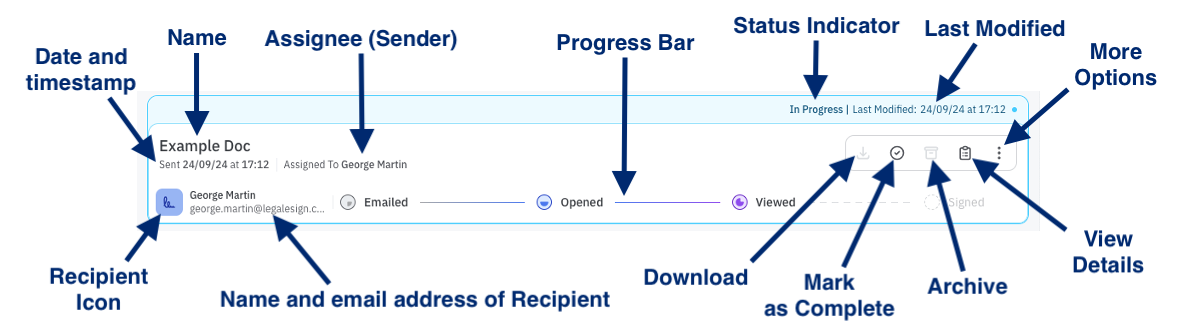
- The status indicator is blue for In Progress, green for Complete, and red for Rejected.
- The progress bar shows how far recipients have moved through the document workflow.
- The recipient icon lets you send a reminder, update a recipient's contact details, or reset their fields on a document.
Hover over a document to reveal its main actions:
- Download saves a copy of the completed document to your device.
- Mark as Complete completes the document if it has not been fully signed yet.
- Archive removes the document from the Dashboard and moves it to the Sent Archive.
- View Details opens the document details page and audit log.
Use More Options for additional actions:
- Re-create Send Page reloads the send page as it was just before the document was sent, so you can make changes and send an updated version.
- Remove deletes the unsigned document and leaves a record in the Sent Archive. This cannot be undone, and the draft PDF is permanently deleted.
Quick action buttons
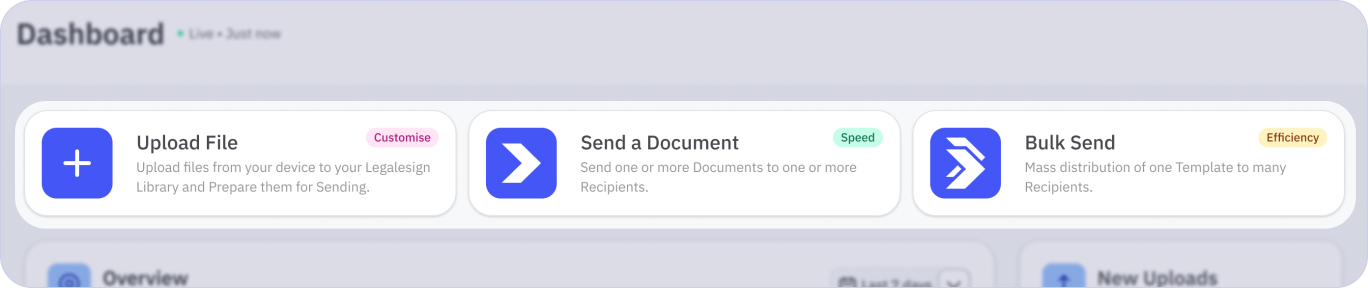
The Quick Action Buttons at the top of the Dashboard let you start the most common workflows with a single click, including uploading a file or sending a template.
Document overview
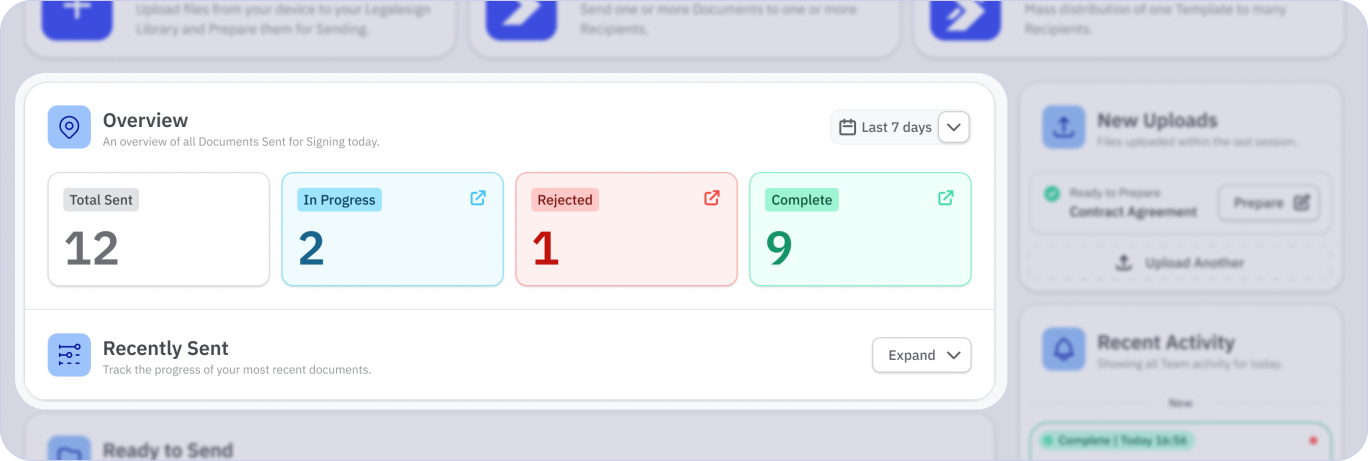
The Overview Panel shows headline document activity for your selected time period, which defaults to the last 7 days. Use it to see what is In Progress, what is Complete, and what may need attention.
The Recently Sent section highlights the 10 most recently sent documents for the selected team.
New uploads
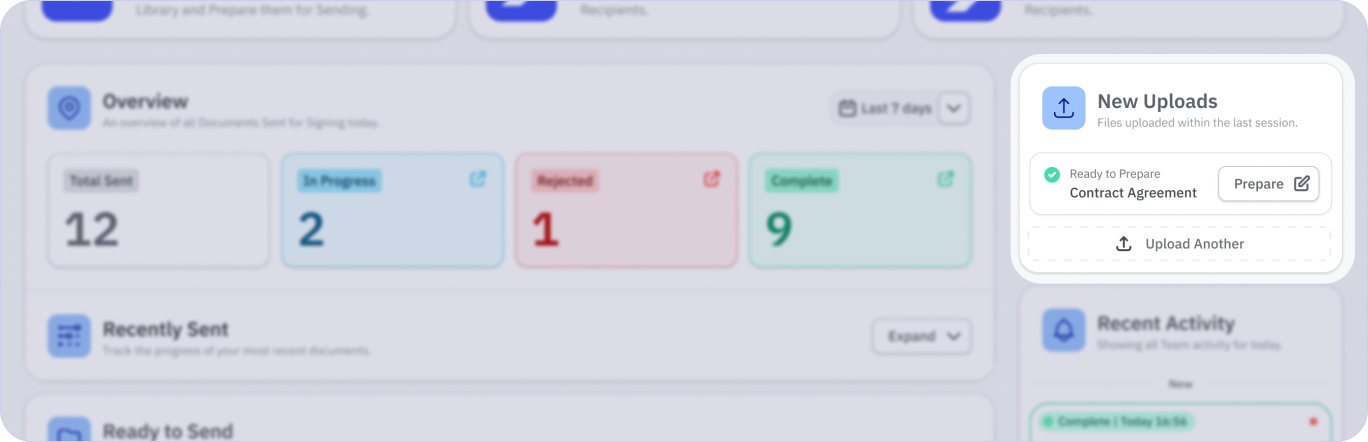
The New Uploads panel automatically shows recently uploaded files so they can be prepared immediately.
Ready to send
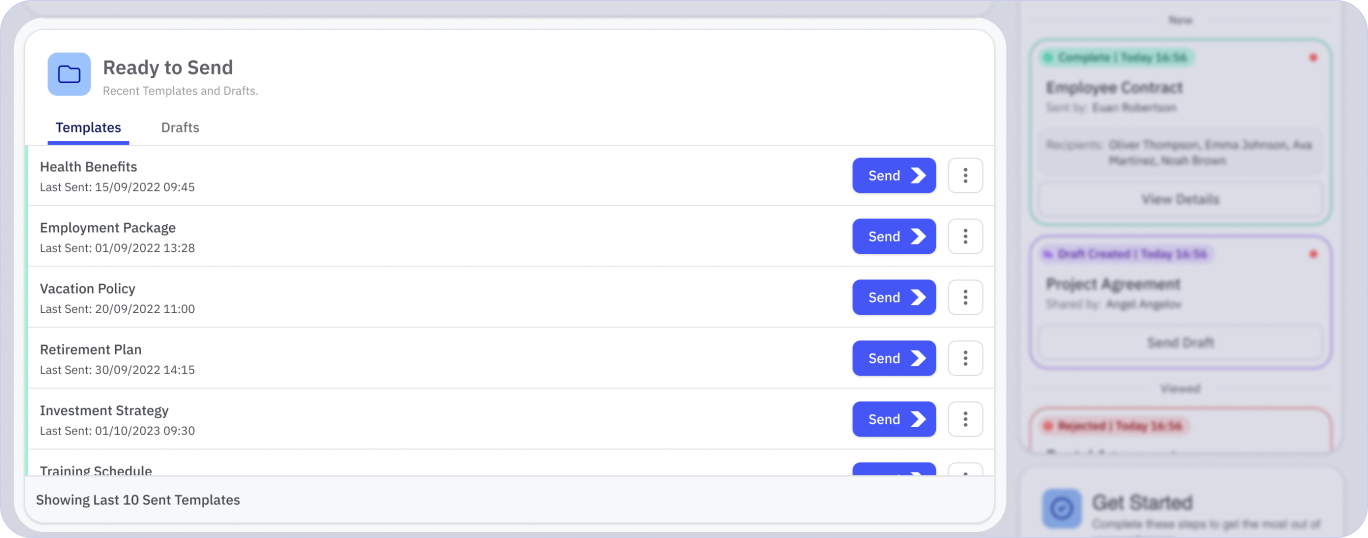
The Ready to Send panel lists your team's 10 most recently modified valid templates so you can start sending without going through the Library first.
Awaiting preparation
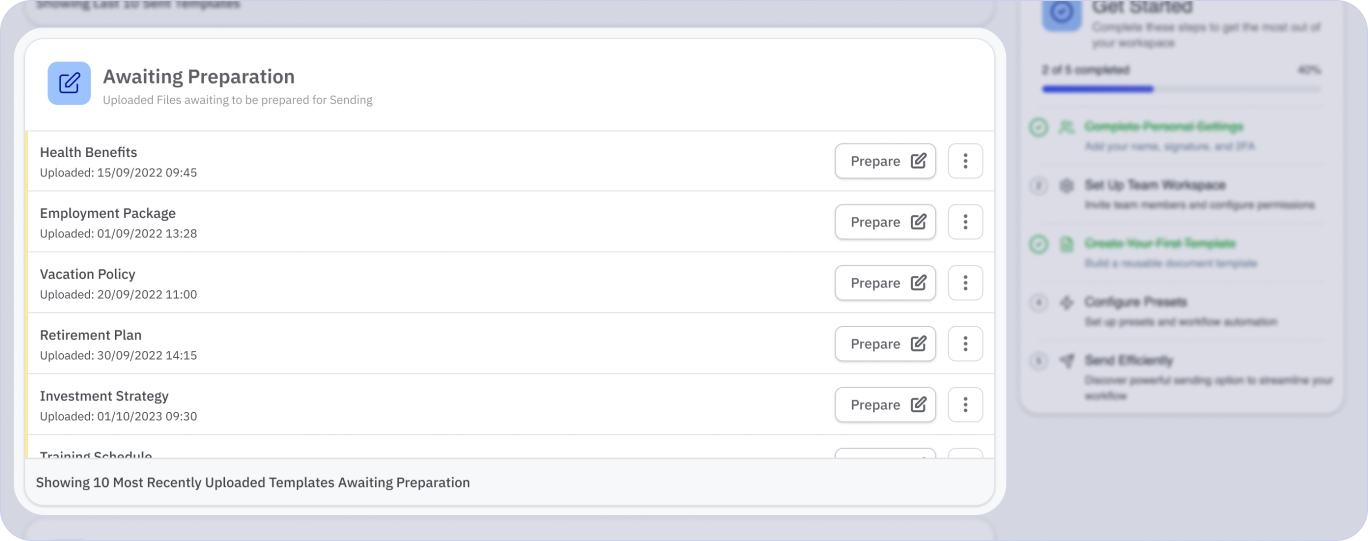
The Awaiting Preparation panel lists the 10 most recently created invalid templates, making it easier to jump into editing and finish template setup.
More actions
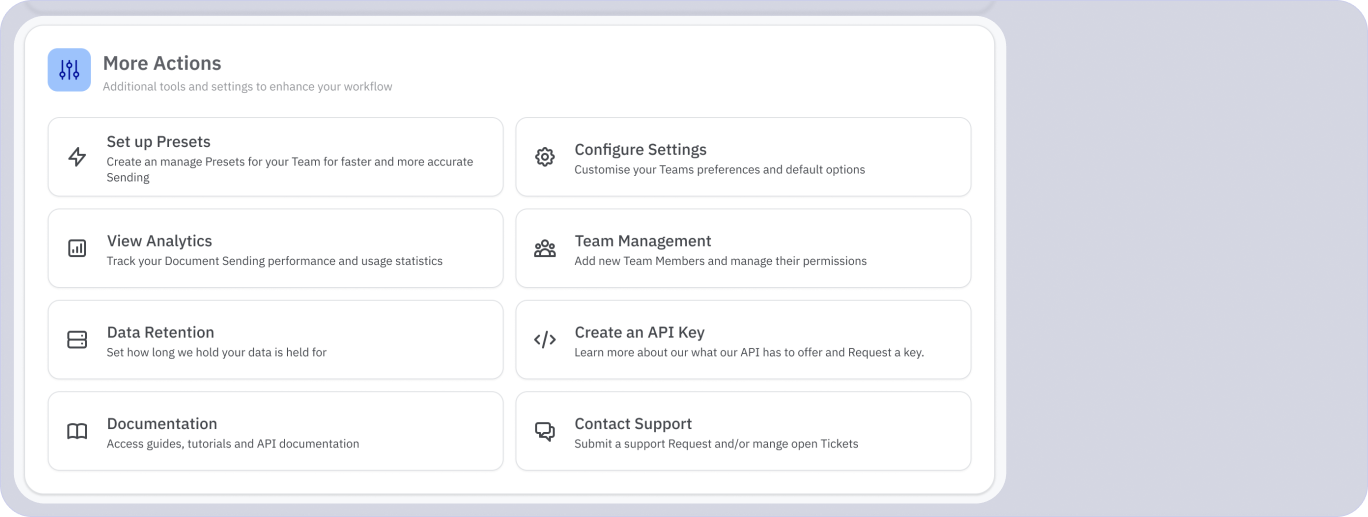
The More Actions panel provides shortcuts to frequently used parts of the app.
Inbox
The Inbox in the main navigation shows all documents sent to you that require your action. See Inbox for more.